
Samsung Odyssey OLED G6
4.7Editor score
240Hz QD-OLED display
Pantone Validated color
Wide HDR10 support
Monitors with USB4 can simplify a modern workstation by combining video, data, and power over a single cable. However, USB-C and USB4 features are often confused, so the most important first step is confirming that a display actually supports the connection standard and capabilities you need.
This guide compares ten relevant monitors and one Thunderbolt docking solution using resolution, refresh rate, panel technology, color coverage, ergonomic design, port selection, and intended use. It covers everything from high-performance OLED gaming displays to compact portable screens and professional 4K monitors.
Each entry explains the product's strongest traits, practical limitations, and ideal buyer. Ratings and specifications reflect the supplied product information, while prices and availability can change, so confirm current details before making a purchase.
4.7Editor score

4.6Editor score
4.4Editor score
As an Amazon Associate we earn from qualifying purchases.
The comparison highlights resolution, refresh rate, color performance, major connectivity features, and the role each product is designed to play. Because only the Plugable device explicitly identifies USB4 support, buyers should treat USB-C compatibility as a separate and less demanding requirement.


The ASUS ROG XG27AQDMGR is a 26.5-inch glossy WOLED gaming monitor built around speed, contrast, and accurate color. It carries a 4.6 rating and combines QHD resolution with a 240Hz refresh rate and 0.03ms gray-to-gray response time, making it one of the most performance-focused options in this guide.
We may earn a commission when you buy through this link, at no additional cost to you.
Its standout strengths include VESA DisplayHDR 400 True Black compliance, 99% DCI-P3 gamut coverage, and true 10-bit color with a stated Delta E below two. The reported color figures make it attractive not only for competitive gaming but also for content creation. ASUS DisplayWidget Center provides mouse-based access to settings and OLED Care Pro functions, while the Neo Proximity Sensor can switch the panel to black when the user leaves.
The main compromise is native QHD rather than 4K. At 1440p, it offers a practical balance of pixel density and speed, but creative users who need fine text or 4K timeline detail may prefer a higher-resolution IPS panel. The glossy surface can also produce reflections in brightly lit rooms, and busy desktop backgrounds may reveal OLED characteristics more readily than a matte display.
This is a strong recommendation for fast-paced gaming, competitive play, and users who value both HDR performance and color accuracy. It is less suited to buyers whose priority is maximum desktop resolution. Its included three-year warranty with advance replacement and burn-in coverage adds reassurance for long-term ownership.
The 240Hz refresh rate and 0.03ms response time prioritize clear motion during quick turns, rapid aiming, and fast scrolling. AMD FreeSync Premium support is also listed, helping reduce choppiness and tearing when the connected system and game cooperate with adaptive synchronization.
True 10-bit color and 99% DCI-P3 coverage support detailed editing and accurate HDR presentation. DisplayHDR 400 True Black compliance and the stated Delta E under two give the monitor broader creative potential than a typical gaming panel.
We may earn a commission when you buy through this link, at no additional cost to you.
Samsung's 27-inch Odyssey OLED G6, model G61SH, delivers the highest listed customer rating in this collection at 4.7. Its QD-OLED panel combines QHD resolution, a 240Hz refresh rate, and 0.03ms response time, creating a premium option for gamers who value both speed and rich visual presentation.
We may earn a commission when you buy through this link, at no additional cost to you.
Color performance is a major attraction. The display is Pantone Validated and is stated to reproduce more than 2,100 lifelike colors and 110-plus skin-tone shades. HDR10 support adds brighter highlights and nuanced shadows, while Glare Free Technology is designed to keep external reflections from obscuring the picture. AMD FreeSync Premium helps reduce choppiness, lag, and image tearing.
Samsung also adds OLED Safeguard technology, which uses thermal modulation to help protect against burn-in. That protection does not eliminate every OLED consideration, however, and users should still consider screen layout and viewing habits. As with the ASUS model, its QHD resolution provides less fine detail than 4K and may not satisfy users whose work depends on dense text or very high-resolution media.
The Odyssey OLED G6 is ideal for enthusiasts seeking a fast, colorful gaming monitor with a refined industrial design. Its height-adjustable stand pivots, tilts, and swivels for positioning. For USB4 specifically, it should be treated as a display that can participate in a USB4 workstation through compatible downstream equipment rather than as a native USB4 monitor.
The Pantone Validated claim and extensive stated color coverage make the G6 appealing for games, entertainment, and color-sensitive creative work. Its wide gamut can provide more nuanced highlights and shadows than a conventional office-oriented IPS panel.
Height adjustment, pivoting, tilting, and swiveling make it easier to position the 27-inch panel comfortably. A polished stand and broad viewing adjustments also help distinguish this premium gaming display from entry-level alternatives.
We may earn a commission when you buy through this link, at no additional cost to you.
The InnoView 27-inch Dual Mode monitor is unusual because it can operate at 4K UHD 120Hz or FHD 288Hz. Its 4.4 rating reflects a flexible product aimed equally at gaming, office work, media viewing, and creative tasks. The IPS panel, HDR support, and 100% sRGB coverage make it more versatile than a basic esports screen.
We may earn a commission when you buy through this link, at no additional cost to you.
Two full-function Type-C ports and one HDMI port provide broad connection options without requiring drivers. The product supports macOS and Windows computers, as well as phones, Nintendo Switch, PS4, PS5, and Xbox devices. Built-in dual speakers and a 3.5mm audio jack reduce the need for separate desktop speakers, while FreeSync technology supports smoother gameplay when paired with compatible hardware.
Its most important limitation is portability. At 0.7 inches thick and 9.5 pounds, the metal display is slim but heavy, and InnoView recommends fixed indoor use rather than frequent transport. The advertised 288Hz FHD mode also requires a host device and game capable of driving that combination, and the inclusion of full-function USB-C does not by itself prove USB4 support.
This monitor is a compelling choice for someone who wants one screen to alternate between detailed 4K productivity and extremely fluid FHD gaming. It suits fixed dorm rooms, studios, offices, and shared entertainment spaces better than true mobile workflows. Its 18-month warranty and 24/7 support provide added reassurance.
4K at 120Hz is useful for detailed documents, editing, movies, and modern games, while FHD at 288Hz offers a lower-resolution path for very fast competitive play. Switching modes makes the display adaptable without changing hardware.
Dual full-function Type-C ports, HDMI, FreeSync, built-in speakers, and a 3.5mm jack cover common desktop and entertainment needs. Verify the exact USB-C bandwidth and power-delivery requirements for your source device before purchase.
We may earn a commission when you buy through this link, at no additional cost to you.
The InnoView Dual Portable Monitor combines two 23.8-inch 4K panels in a folding, stacked format. It carries a 4.2 rating and is designed for users who want more workspace than a conventional laptop provides without assembling two separate desktop monitors. Both displays offer 3840×2160 resolution and 100% sRGB coverage.
We may earn a commission when you buy through this link, at no additional cost to you.
Its productivity features are substantial. Extend mode creates separate desktop areas, Duplicate mode mirrors content, and Combine mode presents the two screens as a wider canvas. The 180-degree folding mechanism and 315-degree adjustment allow the displays to be repositioned for side-by-side work, vertical orientation, or sharing with a nearby person.
Connectivity includes HDMI, USB-C, and DisplayPort, and the product is stated to work without drivers with Windows and macOS. Its limitation is size: the manufacturer explicitly advises against carrying the large, heavy system for travel. Achieving the full 4K quality on each panel also depends on the connected source device's capabilities, bandwidth, operating system, and scaling support.
The InnoView is best for a fixed mobile workstation, editing bay, trading setup, or productivity-focused desk where two full-size 4K screens add value. It is less appropriate for commuters or anyone with limited desk depth. Its 30-day no-questions-asked returns and 18-month warranty provide a practical safety net.
Keeping documents, code, previews, and communication windows visible at once reduces constant window switching. Two independent 4K panels also provide more usable desktop area than most single portable monitors.
The stacked design can reclaim desk space when only one screen is needed, while the wide adjustment range supports collaboration. Physical folding and rotation are especially useful when sharing a visual directly with a colleague.
We may earn a commission when you buy through this link, at no additional cost to you.
The LG 27US500-W UltraFine is a 27-inch 4K UHD IPS monitor designed for detailed professional work. Its 4.4 rating reflects a solid balance of resolution, color capability, and practical features. At 3840×2160, it offers enough pixel density for interfaces, documents, photography, and video work.
We may earn a commission when you buy through this link, at no additional cost to you.
HDR10 support is paired with up to 90% DCI-P3 gamut expression and a 1000:1 contrast ratio. These specifications make the display more capable than a basic office monitor without moving into the specification extremes of premium OLED models. Onscreen Control lets users split the workspace or adjust basic options with the mouse, reducing the need to navigate a dense physical menu.
Reader Mode, Flicker Safe operation, wide viewing angles, and an adjustable tilt stand support long work sessions. However, the listed connection information mentions HDMI and DisplayPort rather than a clearly identified USB-C or USB4 interface. That means USB4 users should not assume this display can receive video, data, and power over one cable without checking the full port specification.
The LG UltraFine is a strong fit for creative professionals, office users, and programmers who value sharp 4K imagery more than extreme gaming refresh rates. The included HDMI cable, power adapter, stand, and documentation simplify initial setup. Its white borderless design also gives it a clean, modern appearance suitable for a professional workspace.
Native 3840×2160 resolution packs substantially more information onto a 27-inch panel than QHD. That density can make small interface elements and text easier to inspect while retaining enough screen size for comfortable multitasking.
Reader Mode, Flicker Safe technology, and adjustable tilt make the monitor suitable for extended productivity sessions. Onscreen Control's mouse-based operation also makes routine workspace and display adjustments more approachable.
We may earn a commission when you buy through this link, at no additional cost to you.
Samsung's Odyssey OLED G6 stands out with a 4.7 customer rating, the highest among the products supplied. The 27-inch QD-OLED display combines 1440p resolution with a 240Hz refresh rate and 0.03ms response time, making it particularly compelling for fast games where motion clarity matters.
We may earn a commission when you buy through this link, at no additional cost to you.
Its visual features include HDR10, a Pantone Validated screen, and stated reproduction of more than 2,100 colors and 110-plus skin-tone shades. Glare Free Technology is intended to maintain clarity under external light, while OLED Safeguard's thermal modulation helps reduce burn-in risk. AMD FreeSync Premium handles synchronization on compatible AMD systems.
The main limitations are the absence of a stated USB4 interface and the choice of QHD rather than 4K. USB-C may be available for some functions, but the supplied specification does not confirm USB4 bandwidth, DisplayPort Alt Mode, or power delivery. Buyers who require a true one-cable USB4 setup should verify the exact port list before purchase.
Despite that caveat, the G6 is an excellent high-performance display for competitive and enthusiast gaming. Its adjustable stand supports a more comfortable setup, while the QD-OLED panel provides the speed and color characteristics many gaming buyers prioritize. For USB4 workstation use, it would need to be paired with a suitable dock or adapter.
A 240Hz refresh rate and 0.03ms response time make fast-moving content easier to follow. FreeSync Premium adds value when the game, graphics settings, and system configuration support adaptive synchronization.
The thermal modulation system actively works to protect OLED performance over time. While it cannot change the nature of OLED technology, it adds a layer of active management for buyers who expect long working lives.
We may earn a commission when you buy through this link, at no additional cost to you.
The SUPERFECT 15.6-inch portable touchscreen combines a 4K UHD panel with responsive 10-point touch input. It carries a 4.4 rating and is intended for users who want more than a conventional portable monitor, particularly creative workflows that benefit from finger-based control.
We may earn a commission when you buy through this link, at no additional cost to you.
The display offers 3840×2160 resolution, 125% sRGB color coverage, and a stated 2000:1 contrast ratio. Its frameless, thin design suits travel and mobile workspaces, while the touch function can provide a more natural way to navigate certain applications. The product listing specifically emphasizes desktop-level clarity and finger-precision interaction.
Connection is described as driver-free through USB-C with laptops, phones, tablets, and consoles. A Mini HDMI option is mentioned, but touch functionality in that configuration requires both a power supply and a USB-A-to-USB-C connection. The supplied information does not identify USB4, so the USB-C connection should not be assumed to provide Thunderbolt-class bandwidth.
This monitor is best for mobile productivity, demonstrations, creative work, or a secondary display when touch input is important. Its small footprint makes it much easier to carry than the larger InnoView models. The principal creative limitation is the 125% sRGB specification, which is suitable for general and many professional tasks but less expansive than the best DCI-P3 options in this guide.
Ten-point touch can make on-screen controls, drawing, presentation tools, and app navigation more direct. It does not make every application faster, but it expands the ways a portable screen can be used.
The 15.6-inch form factor combines a large enough canvas for detailed work with a more manageable size than a full desktop monitor. USB-C plug-and-play operation simplifies setup with many modern devices.
We may earn a commission when you buy through this link, at no additional cost to you.
The Samsung ViewFinity S7 model S71H is a 27-inch 4K UHD IPS monitor built around visual clarity and everyday productivity. Its 4.6 rating is among the strongest in the collection, and the 3840×2160 panel is well suited to intricate designs, complex diagrams, and dynamic video content.
We may earn a commission when you buy through this link, at no additional cost to you.
HDR10 support promises darker blacks and brighter highlights, while Samsung states a gamut of more than one billion accurate colors. The IPS format provides wide viewing angles, making the monitor practical for collaborative work where neighboring viewers may see the screen. Eye Saver Mode is TÜV certified for reducing blue light and preventing screen flickering during prolonged sessions.
Connectivity is listed as HDMI and DisplayPort. Neither a USB-C input nor USB4 is specified, so this is primarily a conventional wired display rather than a one-cable modern workstation solution. A USB4 adapter can potentially provide connectivity through another device, but actual performance depends on the host, dock, and selected display path.
The ViewFinity S7 is a strong general-purpose recommendation for office professionals, designers, and content viewers. Its Game Mode can adjust color and contrast for clearer scenes, although the product is not positioned as an ultra-high-refresh gaming monitor. It is most attractive for buyers who value 4K sharpness, eye comfort, and professional presentation over esports-level speed.
High pixel density reveals more information in diagrams, interfaces, and video timelines. A 27-inch size also leaves enough physical room for useful multitasking without making the monitor excessively large.
TÜV-certified Eye Saver Mode addresses blue-light output and flickering, two common sources of visual fatigue. These features are especially relevant for office users who spend long periods reading and reviewing material.
We may earn a commission when you buy through this link, at no additional cost to you.
The Plugable 16-in-1 Thunderbolt 4 Dock is the only product in this list that explicitly identifies USB4 and Thunderbolt 4 support. It is not itself a monitor, but it is highly relevant to shoppers building a USB4 workstation because it can connect a compatible laptop to two 4K 60Hz displays while also providing charging, networking, storage, and peripherals.
We may earn a commission when you buy through this link, at no additional cost to you.
The dock supports M4 and M5 Macs, Windows systems, and USB4 laptops without requiring additional drivers. Video can be sent through HDMI or DisplayPort, and the included Thunderbolt 4 cable provides 40Gbps of link bandwidth. Power Delivery offers up to 100W, allowing a compatible laptop to charge through the dock rather than requiring a separate charger.
The 16-in-one layout includes seven USB ports, 2.5Gbps Ethernet, SD and microSD card slots, audio connections, and USB-C and USB-A charging options. Compatibility extends to Thunderbolt 5, Thunderbolt 4, USB4, and USB-C laptops, along with macOS 11 or later and Windows 10 or later. The stated 4K 60Hz ceiling is suitable for productivity but not high-refresh gaming.
This dock is the most technically relevant recommendation for someone specifically seeking USB4 equipment, provided they already own suitable monitors. It is ideal for a clean, portable desk setup where one dock connection replaces several separate wires. It is not a substitute for a display, and users seeking 4K gaming should choose displays with much higher refresh rates.
A single Thunderbolt 4 connection can carry display signals, network traffic, storage data, and laptop charging. This simplifies desk management and reduces the need to reconnect peripherals whenever the laptop changes position.
Seven USB ports, card readers, audio, Ethernet, and charging create a practical hub for a professional desk. The included 40Gbps cable supports the full performance promised for the Thunderbolt 4 connection.
We may earn a commission when you buy through this link, at no additional cost to you.
The Samsung ViewFinity S6 model S61F is a 27-inch QHD monitor that prioritizes practical resolution, smooth motion, and ergonomic flexibility. Its 4.3 rating reflects a capable general-purpose option, with 2560×1440 resolution and a 100Hz refresh rate offering more fluidity than a standard 60Hz office display.
We may earn a commission when you buy through this link, at no additional cost to you.
The higher pixel density reveals fine details in designs, diagrams, and video content, while the 100Hz refresh rate reduces lag and motion blur during fast-paced activity. Game Mode provides optimized display settings for clearer scenes. For general work, Eye Saver Mode is certified by TÜV to reduce eye strain during extended sessions.
Connectivity is listed as HDMI and DisplayPort, with no explicit USB-C or USB4 input. As a result, this monitor is better suited to a traditional desktop setup or to users who already have a compatible adapter. It should not be marketed as a native USB4 display based on the supplied information.
The ViewFinity S6 is a sensible option for office productivity, study, and general home use. Its stand supports tilt, pivot, and height adjustment, allowing better positioning over long documents and reducing the need to scroll through information. It is also a more measured alternative to high-refresh gaming panels, though it cannot match the detail of a 4K model.
A 100Hz refresh rate improves cursor movement and everyday scrolling compared with a conventional 60Hz screen. The same specification also provides a useful foundation for many types of casual and competitive gaming.
Tilt, pivot, and height adjustments allow the screen to be aligned more naturally with the user and desk. That flexibility is valuable for long document work and for shared workspaces where viewing angles vary.
We may earn a commission when you buy through this link, at no additional cost to you.
A USB4 monitor must satisfy both display-quality requirements and strict connectivity requirements. Start by confirming native USB4 support, then evaluate the resolution, refresh rate, color, ergonomics, and form factor that fit your workflow.
USB4 requires compatible hardware at both ends of the cable and should be identified explicitly in the monitor specifications. A USB-C port can carry video, data, and power, but it does not automatically provide USB4 bandwidth. Check whether the port is USB4, whether DisplayPort Alt Mode is supported, and whether video output works at the intended resolution and refresh rate. Host-device specifications matter too because a USB4 laptop may still have restrictions imposed by its operating system, graphics configuration, or selected application.
Choose only a monitor that explicitly confirms USB4 when true USB4 operation is essential. If your primary requirement is convenient single-cable video and charging, a well-specified USB-C display may still be sufficient.
Resolution determines how much information fits on screen and how fine text can appear. A 4K UHD panel provides 3840×2160 pixels, making it valuable for code, spreadsheets, design work, video timelines, and detailed documents. QHD at 2560×1440 is often more balanced for general productivity and gaming because it demands less graphics performance. FHD can still be useful when extremely high refresh rates or a portable form factor are the main priorities.
Pick the resolution that matches your source device and daily workflow. Avoid paying for 4K if your computer cannot drive it comfortably or if you only need a compact secondary screen.
Refresh rate controls how often the image updates and can influence motion clarity, responsiveness, and the smoothness of scrolling. A 100Hz or 120Hz screen is a practical productivity upgrade, while 240Hz and 288Hz options suit competitive gaming and fast-paced titles. High refresh rates are most noticeable when the computer and graphics settings can actually deliver the selected frame rate.
Balance refresh rate against resolution. For example, demanding 4K at 120Hz places greater demands on a computer than QHD at 240Hz. The InnoView dual-mode design demonstrates this tradeoff by allowing users to change between resolution and refresh priorities.
For professional work, sRGB coverage is a practical baseline, while DCI-P3 coverage indicates a wider gamut suited to modern HDR content and digital creation. HDR10 support adds dynamic-range capability, but panel brightness and contrast determine how impactful it appears. QD-OLED and WOLED monitors can deliver very high contrast, whereas IPS models are often better suited to offices because of their viewing-angle consistency and lower risk of bright reflections.
Use color specifications as guidance rather than a guarantee of professional accuracy. If precise output matters, request additional calibration data and consider the intended color workflow before purchasing.
A single-cable setup is most useful when the display can charge the connected laptop while carrying video and data. Check the monitor's stated power-delivery output against the laptop's charging requirement, because a lower-powered monitor may charge slower or may not charge every device at its maximum level. Some docks and displays also require separate power for certain features, especially touch input or additional downstream devices.
Treat power delivery as part of the connectivity decision. A 65W USB-C monitor may suit many ultraportable systems, while 100W Thunderbolt docking is more appropriate for demanding professional laptops.
Height adjustment, tilt, swivel, and pivot make it easier to position a display at a comfortable height and viewing angle. These controls matter for long work sessions because they can reduce neck strain and make it easier to alternate between a centered screen and a side-by-side productivity layout. A wide monitor also requires sufficient desk depth and may need a larger viewing distance than a compact display.
Look beyond the panel to the supplied stand and VESA compatibility. If the base is too large, check whether the monitor supports a more flexible third-party arm or wall mount.
Portable monitors are valuable when a laptop is the primary computer and desk space is limited. Smaller panels and lighter designs are easier to carry, but touch, high-resolution color, and multi-screen configurations can increase size and weight. Large dual-screen systems generally work best in a fixed location despite being described as portable. A monitor with a kickstand may still be too heavy for regular transport.
Choose true mobility for frequent travel and a desktop monitor for stationary productivity. Weight, thickness, power requirements, and included adapters should be considered together.
A monitor cannot deliver features its computer, cable, dock, and operating system cannot support. Confirm that the included or recommended cable meets the required bandwidth, especially when driving multiple high-resolution displays. For USB4 systems, use a certified cable appropriate to the connection. Users switching between macOS and Windows should also verify whether display modes, scaling, HDR, touch, or adaptive synchronization behave differently in each operating system.
Map the entire setup before buying. Compatibility is a chain, and a monitor marketed around USB-C may still require a particular adapter, dock, or cable to reach the desired configuration.
Begin by confirming that the computer, monitor or dock, and cable all support the intended USB4 mode. Connect the appropriate Thunderbolt or USB4 cable, power the display if required, and select the correct input through the on-screen menu. On systems with multiple displays, open the operating system's display settings and arrange the screens to match their physical positions. Set the native resolution before adjusting scaling so that text and controls appear sharp.
For a docking setup, connect the dock to the laptop first and then attach each display through HDMI or DisplayPort as appropriate. Allow the computer to recognize the new peripherals, configure resolution and refresh rate for every screen, and test USB data devices individually if any device fails to appear. Some displays and docks may require separate power or firmware updates, and some host computers restrict video output when they are running at their maximum internal display refresh rate.
Care for the panel by using the on-screen controls to set suitable brightness and contrast, enabling eye-comfort features where available, and avoiding unnecessarily bright static images. Clean the screen with a soft, lint-free cloth and a suitable screen-cleaning solution, never pouring liquid directly onto the display. Periodically inspect cables, update device software, and check the stand or mount for stability. For OLED models, use the supplied burn-in protection features and avoid leaving fixed interface elements onscreen for long periods when practical.
No. USB-C describes a physical connector shape, while USB4 is a separate high-speed data and display protocol. A monitor may include USB-C for video, data, or charging without supporting the full bandwidth and features of USB4. Confirm that the product specification explicitly says USB4, and also verify the supported video modes and power delivery.
A compatible Thunderbolt 4, Thunderbolt 5, or USB4 computer is generally required for full USB4 performance. Some USB-C laptops can work with limited display functions, but they may not provide USB4 data speeds, dual-display support, or the expected power delivery. Operating-system and graphics settings can also limit the final configuration.
It depends on the laptop's capabilities and the monitor's fallback modes. The USB-C monitor may still provide video or charging if the laptop supports DisplayPort Alt Mode and appropriate power delivery, but full USB4 features will not be available. The best approach is to consult both device manuals and verify the required bandwidth before buying.
USB4 can still be worthwhile when a single cable handles display output, charging, networking, storage, and peripherals. It simplifies a frequently reconnected laptop setup and provides more expansion options than a basic USB-C display. The benefit is greatest for users who regularly dock and undock or need several accessories connected at once.
Choose 4K when detailed text, design work, spreadsheets, and video editing matter most. QHD provides a strong balance for general productivity and gaming, while FHD can make very high refresh rates easier to achieve. Ensure that your graphics hardware can sustain the selected resolution and refresh rate at the desired detail level.
That depends on the monitor's power-delivery rating and the laptop's requirements. A lower-wattage USB-C display may charge many ultraportable laptops effectively but may provide less power than a full-size workstation laptop expects. Check both the display's maximum output and the computer's accepted charging profile before relying on a one-cable setup.
A compatible Thunderbolt 4 or USB4 dock can often drive two 4K displays at 60Hz. The Plugable model in this guide is specifically designed for that arrangement, but the final result depends on the host computer, operating system, display connections, and any bandwidth allocated to other dock functions. Higher refresh rates or more displays may require different hardware.
OLED monitors can offer excellent contrast, color, and motion performance for office tasks. Their main considerations are brightness management, reflections on glossy finishes, and static content when comparing them with IPS panels. For general productivity, an IPS 4K model may be preferable, while OLED is particularly attractive for gaming and HDR viewing.
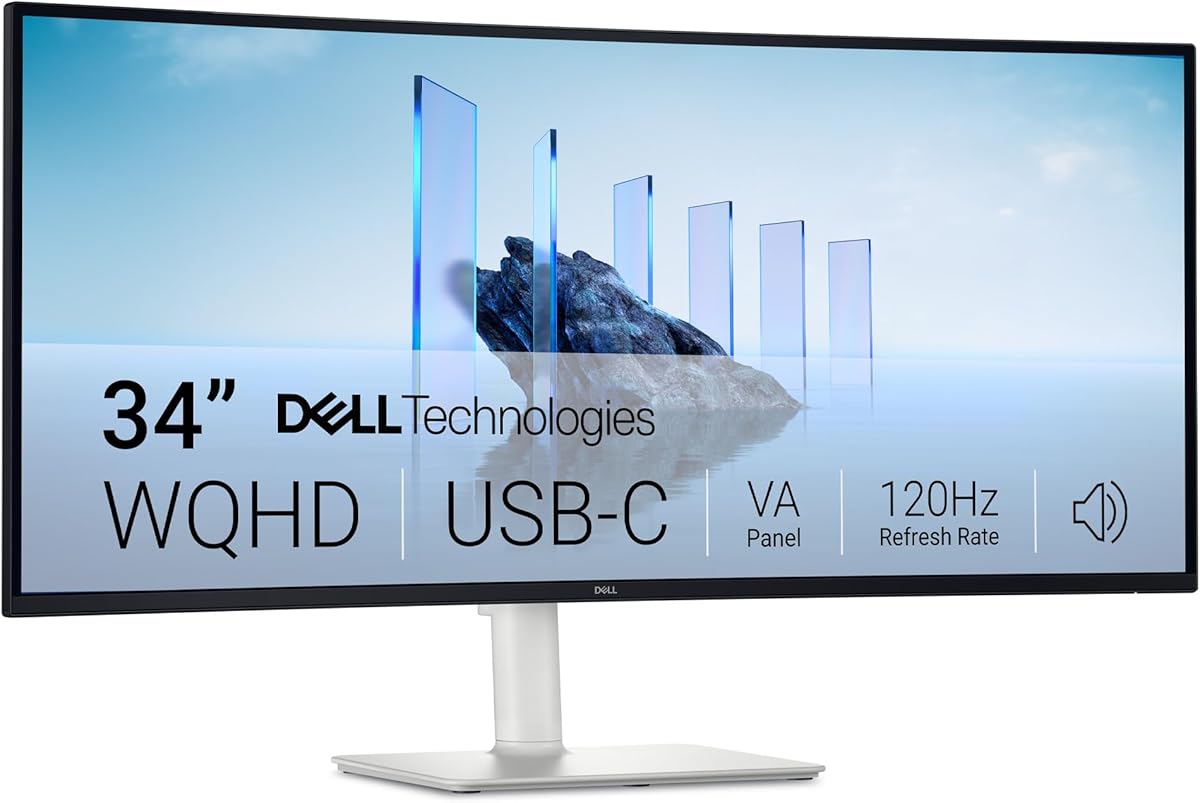
The ASUS ROG XG27AQDMGR is the strongest all-around high-performance pick because it combines a 240Hz QHD OLED panel, extremely fast response, strong color accuracy, and thoughtful OLED protection. The Samsung Odyssey OLED G6 offers similarly fast QD-OLED performance with exceptional stated color validation, while the Dell S3425DW stands out as a practical USB-C ultrawide with power delivery and a 120Hz refresh rate.
Prioritize native USB4 only when you genuinely need its bandwidth and device compatibility. Most buyers will benefit more from choosing the right resolution, refresh rate, color coverage, ergonomics, and power delivery. For a real USB4 workstation, the Plugable Thunderbolt 4 dock is the clearest match, but it must be paired with suitable displays and a compatible computer.
Before purchasing, recheck the current port specifications, supported resolution and refresh combinations, cable requirements, and live product details. Ratings can change as more customers review a display, while prices, promotions, and availability fluctuate over time.