
SANSUI 34-Inch Curved Gaming Monitor
4.4Editor score
3440 x 1440 UWQHD resolution
200Hz refresh rate
1500R curved Fast VA
A cheap ultrawide monitor can transform a desk by adding horizontal space for gaming, creative work, and everyday multitasking. The right model balances a genuine 21:9 format with useful resolution, smooth motion, accurate color, comfortable ergonomics, and dependable connectivity without requiring a premium display.
We compared all 10 monitors by examining their panel resolution, refresh rate, response claims, adaptive-sync support, color coverage, curve, ports, ergonomic adjustments, built-in features, and suitability for different users. The list includes curved and flat designs, WQHD and WFHD panels, and options aimed at gaming, productivity, and mixed use.
Each review identifies the feature that makes a particular monitor worth considering and also explains where it falls short of the alternatives. Ratings and specifications reflect the supplied product information, while prices and availability can change, so confirm current listings and compatibility before purchasing.
4.4Editor score

4.6Editor score

4.4Editor score
As an Amazon Associate we earn from qualifying purchases.
The comparison chart highlights the most important differences among the 10 monitors, including resolution, refresh rate, adaptive-sync support, and core connectivity. It provides a quick way to identify the model that best matches your preferred balance of gaming speed, productivity space, color coverage, and desk convenience.


The SANSUI 34-Inch Curved Gaming Monitor combines a 3440 x 1440 UWQHD panel with a rapid 200Hz refresh rate, making it one of the strongest performance-focused entries in this guide. Its 4.4 rating reflects a favorable balance of high-speed gaming, a 1500R curve, and extensive display-oriented features at an affordable tier.
We may earn a commission when you buy through this link, at no additional cost to you.
The monitor supports VRR through HDMI 2.1 and includes a 1ms OD response specification, two HDMI 2.1 inputs, and DisplayPort 1.4. Gaming tools include an AI crosshair, sniper scope, picture-by-picture, picture-in-picture, and AI picture-quality controls, while blue-light reduction is designed for longer viewing sessions. The Fast VA panel also provides 178-degree viewing angles.
Its limitations are practical rather than dramatic. There are no built-in speakers, so headphones or external audio are necessary for private listening and more immersive sound. Ergonomic adjustment consists mainly of tilt, and the listed VESA compatibility is 100 x 100 millimeters. It also includes a Kensington lock, which is useful in shared spaces.
This is the strongest option for a gamer who wants both a high refresh rate and a high-resolution ultrawide experience without moving to a premium monitor. It also works well for users who want PIP or PBP alongside gaming. Buy it when fast motion, modern high-bandwidth video connections, and a large 21:9 canvas matter more than integrated audio or extensive physical adjustment.
The 200Hz refresh rate provides considerable headroom for competitive shooters, racing games, and fast strategy titles. Pairing it with 3440 x 1440 resolution avoids the softer appearance that can accompany a 2560 x 1080 ultrawide while still delivering the wider field of view associated with 21:9.
Two HDMI 2.1 ports and DisplayPort 1.4 give users multiple ways to connect a gaming PC or console. VRR support is particularly useful when the connected hardware and graphics software support compatible variable-refresh operation.
We may earn a commission when you buy through this link, at no additional cost to you.
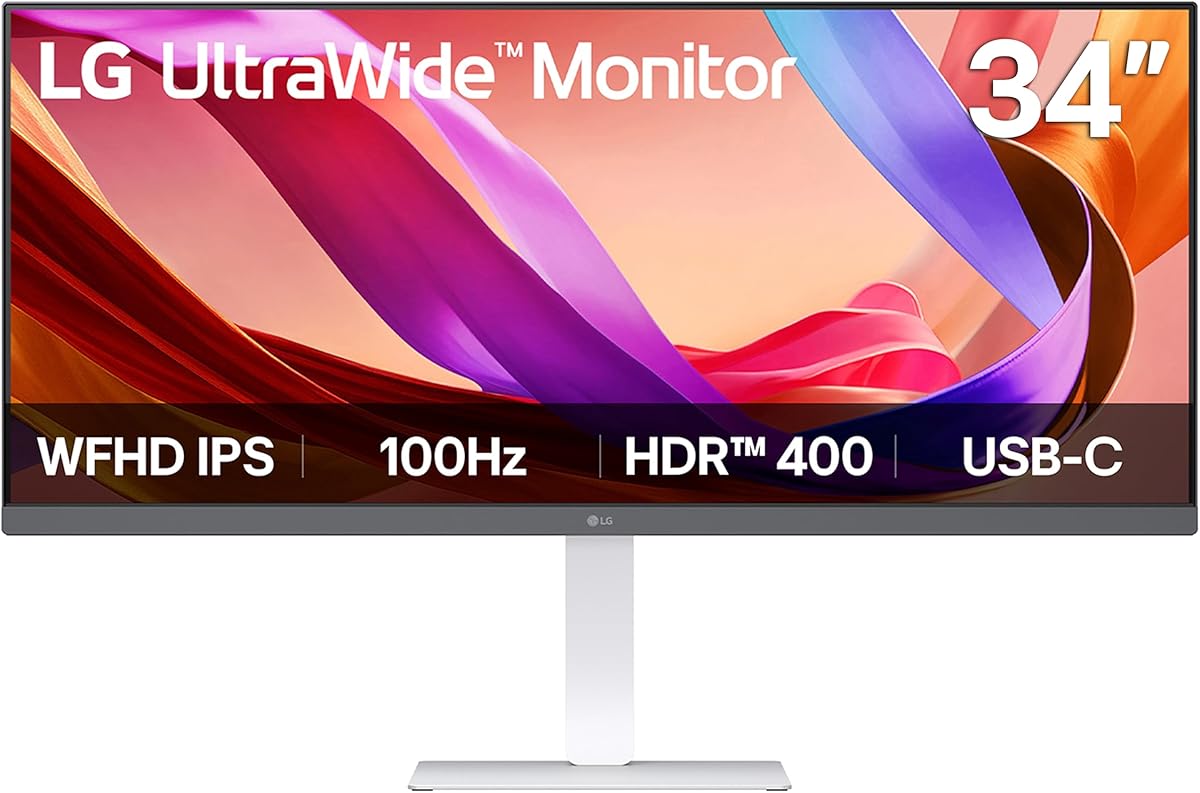
The LG 34U530A-W is a 34-inch 21:9 IPS monitor built around a 2560 x 1080 WFHD panel and a 100Hz refresh rate. Its 4.3 rating and feature set make it especially appealing to productivity users who want a wide workspace, an adaptable stand, built-in audio, and a streamlined USB-C connection.
We may earn a commission when you buy through this link, at no additional cost to you.
Its IPS panel is specified with up to 99% sRGB coverage and VESA DisplayHDR 400 support. The Switch app can divide the screen into as many as six sections, while Reader Mode adjusts the display toward warmer tones for document reading. USB Type-C supports display output and data transfer, and the stand offers height, tilt, and swivel adjustment.
Built-in stereo speakers with Waves MaxxAudio remove the need for desktop speakers in routine work, video-call, and media use. The narrow-bezel white design also fits a bright office better than many black gaming-oriented models. The tradeoff is resolution: 2560 x 1080 spreads more pixels over the same 34-inch panel than WQHD, so fine text and detailed editing are less crisp.
Choose this LG when your priority is a clean, flexible office setup rather than competitive gaming. Its excellent stand adjustment, speakers, USB-C workflow, and screen-splitting features can reduce desk clutter. It is also a good all-rounder for general entertainment, although serious gaming may justify spending more for WQHD and a faster refresh rate.
Height, tilt, and swivel controls make it easier to align the ultrawide panel with different desks and viewing positions. That flexibility is especially valuable in offices where users switch between seated work, calls, and relaxed media viewing.
The Switch app can create up to six screen sections, making it straightforward to keep documents, communication tools, and reference material visible. This reduces reliance on constant window switching and supports a more organized desktop.
We may earn a commission when you buy through this link, at no additional cost to you.
The MSI PRO MP341CQ E12 combines 3440 x 1440 UWQHD resolution with a 120Hz refresh rate, offering a practical middle ground between general-purpose 100Hz ultrawides and very fast gaming displays. Its 4.2 rating reflects a versatile specification sheet for users who split their time between productivity and gaming.
We may earn a commission when you buy through this link, at no additional cost to you.
The supplied feature information highlights a 1500:1 contrast ratio, 178-degree viewing angles, 1ms response time, and Adaptive-Sync support. DisplayPort 1.4a is specified for the full UWQHD resolution at 120Hz, while HDMI 2.0b and HDMI-CEC simplify compatible display control. TÜV Rheinland certification covers flicker-free operation and low blue-light features.
MSI Eye-Q Check provides a vision assessment intended to help optimize display settings, while a firmware-update program supports compatibility and performance improvements. The stand tilts from negative five to positive 20 degrees and supports 100 x 100 millimeter VESA mounting. Unlike several other entries, it also includes a speaker, although the supplied information does not detail its output specification.
This monitor is most suitable for hybrid users who want fine enough resolution for documents and creative applications but also value a 120Hz gaming experience. It is less compelling for buyers seeking extensive stand articulation, broad color specifications, or USB-C connectivity. Its core appeal is a dependable resolution-and-refresh-rate combination at a restrained feature level.
The 3440 x 1440 canvas is materially sharper than 2560 x 1080 and gives desktop applications more usable working width. It is a sensible choice for editing timelines, comparing documents, and arranging several utility windows without immediately resorting to a second display.
Flicker-free certification, low-blue-light features, and Adaptive-Sync address two different aspects of long-session comfort. The former concerns visual fatigue, while the latter helps maintain fluid synchronization between supported graphics hardware and the display.
We may earn a commission when you buy through this link, at no additional cost to you.
The LG 34WR55QK-B is the most broadly balanced option in the roundup, earning the highest listed rating at 4.6. It pairs a curved 3440 x 1440 WQHD display with 100Hz performance, HDR10, a 5ms response time, and connectivity designed for both fixed desktops and laptops.
We may earn a commission when you buy through this link, at no additional cost to you.
USB Type-C provides display, data, and up to 65W power delivery, while two HDMI ports, two USB ports, DisplayPort, and a headphone jack cover most conventional needs. Picture-by-Picture allows two separate input sources to appear on one screen, making the monitor useful for pairing a work computer with a laptop or a second console. OnScreen Control provides additional workspace and picture adjustments.
The main limitation is that 100Hz is modest compared with the 165Hz and 200Hz gaming choices here. There are also no built-in speakers, so audio requires a headset or separate system. Still, the monitor's resolution, 21:9 format, USB-C convenience, and professional appearance remain excellent for mixed use. Reader Mode and the three-sided virtually borderless design add practical value.
This is the best overall recommendation for someone who wants a polished productivity display with credible casual gaming ability. It is particularly attractive to laptop users who value a single-cable setup and to multitaskers who regularly use two sources. Competitive enthusiasts focused on maximum frame rates should instead examine the faster SANSUI, CRUA, KTC, or Acer models.
The 65W USB Type-C connection can carry display and data while also charging a compatible laptop. This can simplify a mobile workstation considerably, although users should verify that their laptop supports the required video mode and power-delivery profile.
Picture-by-Picture displays content from two separate sources, which is useful for monitoring a work system and a personal device. It also gives streamers, traders, and programmers a way to keep secondary information visible without adding another monitor.
We may earn a commission when you buy through this link, at no additional cost to you.
The LG 34U650A-B is the most feature-oriented premium entry, offering a curved 3440 x 1440 IPS panel, HDR10, a 100Hz refresh rate, 99% sRGB coverage, and up to 96W of USB-C charging. Its 4.4 rating reflects a well-equipped design focused on productivity and a clean desk.
We may earn a commission when you buy through this link, at no additional cost to you.
The subtle 3800R curve is intended to follow the natural line of sight, while the IPS panel maintains consistent colors from wide viewing angles. The USB-C connection handles display, data, and laptop power through one cable. DisplayPort and HDMI provide additional options, and built-in DepthSound stereo speakers cover calls, presentations, and everyday media without requiring desktop speakers.
The Switch app supports layouts with as many as six sections, and Reader Mode provides warmer tones for extended reading. Height, swivel, and tilt adjustments, along with one-click mounting, make the monitor flexible to set up. As with other 100Hz WQHD models, it is less compelling for high-end competitive gaming where a very high refresh rate is the main objective.
Choose this model if you want a refined, feature-rich productivity monitor and work regularly with a laptop that benefits from substantial charging power. It is also a good option for shared desks or creative offices because the integrated audio and flexible layouts can simplify the setup. Buyers focused primarily on fast gaming should look to the higher-refresh alternatives.
The 3800R curve is gentler than the 1500R and 1800R designs used by several gaming monitors. That makes it easier to position centrally and may appeal to users who want an immersive 21:9 shape without a pronounced wraparound effect.
Up to 96W of power delivery can charge many demanding laptops while transmitting display and data. This reduces cable clutter and makes the monitor especially practical as the central display in a mobile professional workstation.
We may earn a commission when you buy through this link, at no additional cost to you.
The SAMSUNG ViewFinity S50GC pairs Ultra-WQHD resolution with a 100Hz refresh rate, HDR10, and an unusually strong collection of eye-care features. With a 4.4 rating, it stands out for users who spend long hours at a desk and value a stable, thoughtfully equipped productivity display.
We may earn a commission when you buy through this link, at no additional cost to you.
An ambient light sensor automatically adjusts brightness according to the workstation lighting. Eye Saver Mode reduces excessive blue light, while Flicker Free is designed to ease visual strain. The panel is listed with typical brightness of 300 cd per square meter and a 3000:1 static contrast ratio, specifications that support the model's emphasis on readable, dimensional imagery.
AMD Radeon FreeSync helps synchronize the display and graphics card to reduce tearing. Two HDMI 2.2 ports and one DisplayPort 1.2 input provide solid wired connectivity, and both PIP and PBP can display two sources. The virtually bezel-free design is useful in a dual-monitor arrangement. The tradeoff is the absence of USB-C, which would have been particularly convenient for laptop users.
This Samsung is a good fit for office workers, students, and content viewers who want automatic brightness management and a high-contrast widescreen without moving to a high-refresh gaming model. It also makes sense for mixed desktop and laptop setups that use HDMI or DisplayPort. It is less ideal for buyers who need USB-C charging or fine stand adjustment.
The ambient light sensor is a meaningful convenience in offices where illumination changes throughout the day. Eye Saver Mode and Flicker Free add user-controlled and hardware-oriented comfort features, respectively, making the monitor well suited to extended reading and general computer work.
PIP keeps a resized second source visible while you work in another application. PBP can show two sources at native resolution, which is helpful when comparing projects, running separate utilities, or keeping communication applications accessible.
We may earn a commission when you buy through this link, at no additional cost to you.
This Samsung ViewFinity S50GC QHD model offers a 21:9 Ultra-WQHD panel, 100Hz refresh rate, and 5ms response time. Its 4.4 rating and balanced feature set make it a strong choice for general productivity, cinematic entertainment, and light gaming rather than ultra-competitive play.
We may earn a commission when you buy through this link, at no additional cost to you.
HDR10 is paired with the same 3000:1 static contrast ratio and 300 cd per square meter typical brightness listed for the closely related S50GC model. The ambient light sensor adjusts brightness automatically, Eye Saver Mode reduces excessive blue light, and Flicker Free is designed to reduce strain. AMD Radeon FreeSync helps maintain synchronization with compatible graphics hardware.
Its most useful productivity tools are PIP and PBP. PBP can present two sources at native resolution, while PIP scales a secondary source alongside the main task. A minimal bezel and nearly borderless appearance also help when placing it next to another display. Connectivity is centered on two HDMI 2.2 inputs and one DisplayPort 1.2 input rather than USB-C.
Consider this model for hybrid workers who want more screen area than a standard 16:9 display and enough resolution for crisp text, along with media features for movies and casual games. It is less appropriate for a dedicated esports build where the available 100Hz refresh rate and lack of USB-C may feel limiting. The thin bezel and dual-source support strengthen its appeal in professional workflows.
The 3440 x 1440 resolution provides a useful balance between a 34-inch panel size and text sharpness. It gives creative applications and business documents enough detail while preserving the wide geometry that makes an ultrawide monitor useful for arranging content.
Thin bezels reduce the visual interruption between adjacent screens. Combined with PIP and PBP, that design supports workflows where one display is the primary work surface and a second device provides alerts, references, or communication tools.
We may earn a commission when you buy through this link, at no additional cost to you.
The CRUA 34 Inch 165Hz is a gaming-focused ultrawide that combines a 3440 x 1440 IPS panel with a 165Hz refresh rate. Its 4.2 rating reflects a specification set that strongly favors speed, while the broad color and brightness claims add interest for content creation and media.
We may earn a commission when you buy through this link, at no additional cost to you.
The listed color specification reaches 120% sRGB coverage with 8-bit color depth, 380 cd per square meter peak brightness, and 1000:1 contrast. A 178-degree viewing angle is also specified. These figures should interest users editing images, reviewing video, or wanting a more vivid gaming presentation than a basic office-oriented panel.
AMD FreeSync works with the 165Hz mode to help reduce stuttering and tearing. Two HDMI 2.0 and two DisplayPort 1.4 inputs allow multiple systems to remain connected, and PIP/PBP modes provide useful multitasking options. Dual speakers and a 3.5mm audio jack add more audio flexibility than several competing models. Stand adjustment is limited to tilt, and wall mounting uses 75 x 75 millimeters.
Buy the CRUA when gaming performance and color specifications are both important but 200Hz hardware is unnecessary. It is especially attractive for mixed creative and gaming setups because the wide gamut, brightness, and built-in audio complement the fast panel. The basic ergonomic stand and modest rating make it less ideal for users who demand extensive physical adjustment or heavily curated premium features.
A 165Hz refresh rate offers a meaningful step above 100Hz and 120Hz models for fast movement. The UWQHD resolution also preserves more detail than a 2560 x 1080 gaming ultrawide, making the CRUA appealing for players who do not want to compromise either speed or sharpness.
The stated 120% sRGB coverage, high peak brightness, and 8-bit depth support more vivid editing and media workflows. Integrated stereo speakers are convenient for calls and quick previews, although serious audio work should still use dedicated headphones or speakers.
We may earn a commission when you buy through this link, at no additional cost to you.
The Acer Nitro ED300C X1 is a 29.5-inch curved gaming ultrawide with a 2560 x 1080 resolution and 200Hz refresh rate. Its 4.3 rating makes it a credible fast-gaming option, especially for players who value motion smoothness more strongly than fine detail at 1440p.
We may earn a commission when you buy through this link, at no additional cost to you.
The 1800R curve wraps around the user for an immersive 21:9 presentation. Acer lists 1ms response time and AMD FreeSync Premium, which synchronizes compatible frame output to reduce tearing. The 200Hz rate can lower input lag and create a noticeably smoother feel in fast 2D scenes, racing games, and competitive shooters.
The main compromise is 2560 x 1080 resolution. On a 29.5-inch display, pixels are more spread out than on a 34-inch WQHD model, so text, menus, and detailed game environments may look softer. The supplied information also mentions only tilt adjustment from negative five to positive 15 degrees, and it does not list a full range of ergonomic controls or detailed port information.
This Acer is a good match for a budget-oriented gaming PC that can drive games quickly and wants a high-refresh ultrawide experience. It is also suitable for console players who value a wide image and smooth motion. Choose a 3440 x 1440 model instead if fine text, dense interfaces, or detailed creative work are central to the purchase.
The 200Hz refresh rate is among the fastest offered in this group. It is particularly compelling for competitive titles, racing simulations, and fast-paced strategy games where frequent frame updates can make movement appear more immediate.
The 1800R curve and 21:9 ratio give racing games and immersive single-player titles a wider field of view. The compromise is that native ultrawide resolution remains lower than the WQHD models, limiting maximum visual detail.
We may earn a commission when you buy through this link, at no additional cost to you.
The KTC H34S5 combines a 34-inch 3440 x 1440 UWQHD panel with a 180Hz refresh rate, placing it among the strongest gaming specifications in the guide. Its 4.5 rating reflects a well-balanced combination of resolution, motion speed, color claims, connectivity, and unusually flexible stand adjustment.
We may earn a commission when you buy through this link, at no additional cost to you.
The 1500R curved HVA panel is listed with 125% sRGB color gamut coverage, 1.07 billion colors, 300 cd per square meter brightness, and 4000:1 contrast. A 1ms MPRT figure supports the gaming positioning, while adaptive sync is included to help reduce tearing. These specifications should produce a vivid presentation for games and media, although they do not indicate professional color calibration.
The stand is the standout practical feature. It supports negative five to positive 20 degrees of tilt, plus or minus 45 degrees of swivel, plus or minus 5 degrees of pivot, and height adjustment up to 110 millimeters. Two HDMI 2.0 ports run the full resolution at up to 100Hz, while two DisplayPort 1.4 connections support the listed 180Hz mode.
Choose the H34S5 for gamers who want a high-resolution, high-refresh display and value physical positioning more than a compact footprint. PIP and PBP add useful productivity options, and the three-year warranty provides added reassurance. For maximum speed, the 200Hz SANSUI and Acer models lead the list; the KTC offers the more convincing balance of performance, resolution, and adjustability.
Height, swivel, pivot, and tilt adjustments make the H34S5 easier to align precisely than models with tilt-only support. This is particularly useful in dual-monitor arrangements, where matching edge alignment can improve visual continuity and reduce awkward neck positions.
DisplayPort 1.4 is the appropriate connection for the listed 180Hz mode, while both HDMI 2.0 inputs support the full UWQHD resolution at up to 100Hz. Users with compatible gaming PCs should connect through DisplayPort to access the highest listed refresh rate.
We may earn a commission when you buy through this link, at no additional cost to you.
The right inexpensive ultrawide depends on whether resolution, refresh rate, color, connectivity, or ergonomics comes first in your setup. These factors help explain the trade-offs between the 10 monitors and prevent a feature that looks impressive on a listing from failing to match your actual needs.
Choose WQHD for detailed productivity, while UWQHD is the better fit for sharp text and media. For the cheapest path to a large ultrawide workspace, WFHD may be sufficient.
Prioritize 165Hz or higher for competitive gaming, 120Hz for mixed use, and 100Hz for productivity. Treat response-time figures as comparative guidance rather than a guarantee.
Check that your GPU and selected port support adaptive sync. Without compatibility, a high refresh rate remains useful but will not provide synchronized frame delivery.
Choose IPS for productivity, a gentler curve for central desk placement, and a tighter curve for immersive gaming. Consider room depth and viewing angle before selecting.
Look for broad gamut and higher brightness for vivid media. For exact editing work, prioritize the manufacturer's color specifications and professional calibration support.
Use DisplayPort for maximum gaming refresh rates. Choose USB-C when laptop charging, docking, and desk simplification are central to your workflow.
Prioritize height adjustment for long sessions and swivel for shared desks. Verify VESA size and desk depth before ordering.
Choose PIP or PBP if you routinely use two computers. Ambient sensors and low-blue-light modes can complement, not replace, healthy viewing habits.
Start by placing the monitor at the distance where the entire 21:9 screen is comfortable to view without turning your head excessively. For a 34-inch model, this is generally farther away than the usual placement for a 16:9 display. Use the included stand or a compatible VESA mount, connect through the port required for your desired refresh rate, and let the operating system recognize the ultrawide resolution before adjusting scaling.
After installation, set the operating system to the native resolution and choose a scaling level that keeps text readable without making windows appear excessively small. Open the monitor's on-screen controls to select the correct input, adjust brightness to the room, and enable features such as adaptive sync, PIP, PBP, or Reader Mode only when they suit your workflow. For HDR content, make sure the source device and applications support it before judging the display's HDR performance.
Clean the panel with a soft microfiber cloth and avoid liquid cleaners applied directly to the screen. Dust the vents, check that cables are not under strain, and leave enough space around the enclosure for ventilation. Periodically verify the selected resolution and refresh rate, update the monitor firmware when the manufacturer provides it, and revisit ergonomic settings if you change desks, chairs, or viewing distance.
Yes, because a 34-inch 21:9 display provides substantially more horizontal workspace than a standard 16:9 monitor. WQHD models such as the LG 34WR55QK-B and LG 34U650A-B are especially suitable for documents, research, and multitasking. Resolution, window management, and your own viewing distance still determine how comfortable and useful the extra space feels.
It can be, particularly for general office work, media viewing, and games where high refresh rate is the priority. The 2560 x 1080 Acer Nitro and LG 34U530A-W provide a large 21:9 canvas, but 3440 x 1440 models display text and detailed interfaces more sharply. Choose based on whether resolution or speed matters more to your setup.
A 100Hz ultrawide is suitable for casual gaming and many competitive titles, while 120Hz provides a modest improvement. Fast shooters, racing games, and competitive simulations benefit more from 165Hz, 180Hz, or 200Hz models. Your graphics card must be capable of driving the selected resolution and refresh rate for the highest settings to remain practical.
Curvature does not automatically cause eye strain; comfort depends on viewing distance, curve strength, desk depth, brightness, and individual preference. A tight 1500R or 1800R curve may feel immersive but can be less suitable for a small desk. The LG 34U650A-B's gentler 3800R curve offers a more restrained alternative for long work sessions.
Only if your workflow benefits from a single-cable laptop setup. The LG 34WR55QK-B supports USB-C with up to 65W, while the LG 34U650A-B supports up to 96W, including display and data in addition to charging. Desktop users with fixed HDMI and DisplayPort connections can choose a less expensive model without USB-C and may miss little practical functionality.
Yes, provided the monitor and both source devices have compatible connections. PIP and PBP options on the SANSUI, Samsung, CRUA, KTC, and LG 34WR55QK-B let you display content from separate inputs. The result can replace a smaller secondary display for chat, monitoring, or reference information, although full native-resolution side-by-side operation depends on the model.
It depends on whether the computer is used primarily for work or gaming. WQHD provides sharper text and more detailed applications, while a high refresh rate produces smoother motion. The KTC H34S5, CRUA 165Hz, and SANSUI 200Hz are compelling because they combine 3440 x 1440 resolution with fast refresh rates, avoiding the usual need to choose only one.
A WQHD ultrawide can serve as the main display in a dual-monitor arrangement, while PIP or PBP provides convenient access to a second source. The Samsung models emphasize thin bezels for a visually continuous setup, and the KTC's pivot and swivel adjustment can help with alignment. Check desk width and mounting options before adding a second panel.
The SANSUI 34-Inch Curved Gaming Monitor is the standout value for gamers because it combines 3440 x 1440 resolution with a 200Hz refresh rate, HDMI 2.1, VRR, and useful gaming assists. The LG 34WR55QK-B is the best overall option for mixed use, offering polished productivity features, 65W USB-C, multiple inputs, and an excellent 4.6 rating, while the LG 34U650A-B is the premium choice for maximum laptop convenience and built-in audio.
Your priorities should determine which category you choose. Prioritize WQHD resolution and USB-C for professional workflows, 165Hz or faster for competitive gaming, broad sRGB coverage and brightness for creative work, or deeper curve and stronger stand adjustment for immersive setups. The MSI PRO MP341CQ E12 and Samsung ViewFinity S50GC models are worthwhile balanced alternatives, while the Acer Nitro suits buyers who prefer maximum refresh rate over fine detail.
Finally, check current prices, warranty terms, and device compatibility before ordering. Monitor listings and promotions can change, and the strongest value depends on both the hardware and the graphics system driving it. Confirm the native resolution, maximum refresh rate at your chosen port, available desk space, and whether you need USB-C charging or two-source multitasking.