
Penstar eNote 2
4.3Editor score
Ten-point-three-inch E-Ink screen
Eight-thousand-level pen pressure
Four-week stated battery life
A paperless note taking tablet can replace loose lecture pages, crowded binders, and stacks of printed handouts while keeping handwritten notes searchable and easy to revise. The best model for students balances a comfortable writing surface, reliable note conversion, reliable storage, long battery life, and enough flexibility for readings, assignments, and presentations.
This guide compares ten options across E-Ink notebooks, LCD writing tablets, conventional Android tablets, and smart pen systems. The evaluation considers writing comfort, display readability, stylus behavior, file handling, organization, audio features, portability, and compatibility with common student workflows rather than treating every device as a direct substitute.
The selections show that the strongest choice depends on the student's habits: some prioritize a paper-like display, others need full app flexibility, and compact smart pens can capture traditional pen-and-paper notes with minimal friction. Ratings, features, and availability can change, so confirm the current listing before purchasing.
4.3Editor score

4.5Editor score

4.0Editor score
As an Amazon Associate we earn from qualifying purchases.
The table below summarizes the core display, input, organization, and portability differences among all ten products, making it easier to identify the device that best matches a student's preferred note-taking method.


The AINOTE Air is an 8.4-inch AI digital notebook built for students who want handwritten notes without giving up searchability, transcription, and document organization. It carries a 4.5 rating and stands out through a full-color, soft paper-like display, a 4096-level pressure-sensitive electromagnetic pen, and AI tools that can transcribe speech, summarize notes, extract action items, and recognize handwriting. That combination makes it unusually complete for lectures, study groups, reading sessions, and personal knowledge management.
We may earn a commission when you buy through this link, at no additional cost to you.
Its writing experience is the foundation of the product. The display uses an eye-care-oriented light source and AG anti-glare technology, while electromagnetic input allows the pen to track handwritten strokes without requiring the user to balance a conventional tablet on a desk. One-tap conversion can turn handwriting into editable text, and the stated AI handwriting recognition covers 66 languages. Audio can be captured offline and stored locally, with AI transcription, summarization, and cloud synchronization becoming available after a connection.
There are trade-offs to consider. The 8.4-inch canvas is less expansive than the 11-inch, 12-inch, and 12.7-inch Android tablets in this guide, so students working across dense textbook pages may need to zoom or reposition documents. The most advanced AI functions depend on connectivity, while offline recording remains available. Even so, the combination of local storage, password protection, encrypted audio transmission, 64GB of internal space, and common document support makes the device versatile beyond simple note capture.
The AINOTE Air is best for students who want a dedicated notebook that feels paper-like but adds transcription, summaries, and searchable organization. It is especially attractive for language learners, students recording discussions, and anyone who prefers a focused device over a general-purpose tablet. For a compact all-in-one writing solution with unusually broad AI support, it is the strongest overall recommendation in this guide.
The full-color paper-like screen and electromagnetic pen create a convincing alternative to writing on loose paper. AI recognition then adds value after class by turning those marks into editable, searchable text.
Offline audio capture, real-time voice transcription, automated summaries, action-item extraction, folders, and personal knowledge-base functions make the device useful beyond a single lecture.
We may earn a commission when you buy through this link, at no additional cost to you.
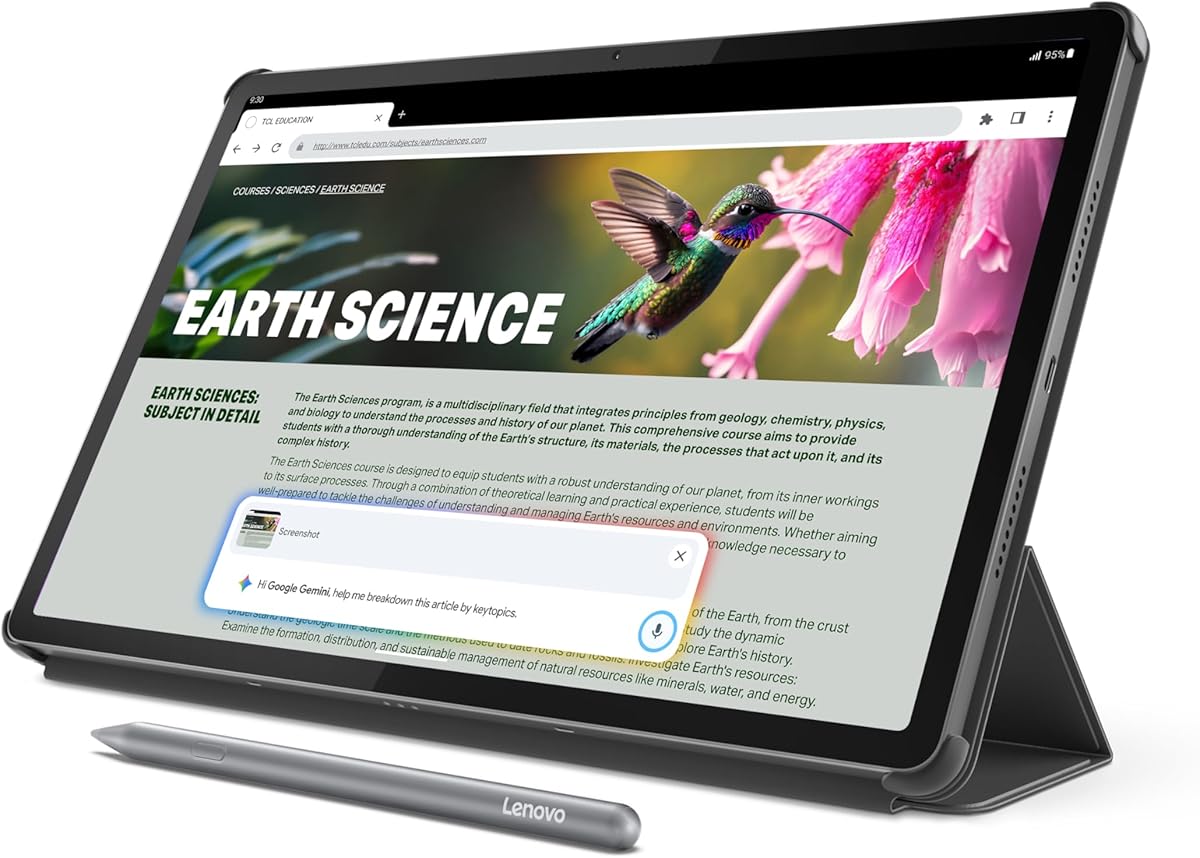
The Lenovo Idea Tab is a conventional 11-inch Android tablet that treats note-taking as one part of a wider student workflow. Its 4.3 rating reflects a well-balanced configuration with a 2.5K IPS touchscreen, 90Hz refresh rate, 4GB of memory, 128GB of storage, and a MediaTek Dimensity 6300 processor. The included Tab Pen and folio case make it especially accessible to students who want a complete setup for handwriting, calculations, research, and media.
We may earn a commission when you buy through this link, at no additional cost to you.
Lenovo bundles Lenovo AI Note, Squid, Nebo, and MyScript Calculator to cover several common learning needs. Students can write or sketch, organize ideas, annotate content, and perform calculations without committing to one specialized note application from the outset. Circle to Search can identify content on the display with a finger or pen, while Google translation provides another route for working with foreign-language material.
The trade-off is that this is an LCD Android tablet rather than a dedicated E-Ink notebook. Its vibrant screen and 90Hz motion are well suited to video, web research, and multitasking, but some students who spend long periods reading or writing may prefer the more paper-like appearance and sunlight readability of E-Ink. The 4GB of memory and 128GB of storage also provide less breathing room for extensive local media libraries than higher-memory configurations.
This Idea Tab is well suited to students who want one device for notes, research, coursework, presentations, and entertainment. The included pen and folio reduce setup friction, while the large display offers more workspace than compact writing tablets. Choose it when app flexibility and smooth multimedia use matter more than a monochrome, book-like screen.
Lenovo AI Note, Squid, Nebo, and MyScript Calculator create a useful starter suite. Students can experiment with different note methods and determine which workflow best matches their classes.
The 11-inch 2.5K display provides room for a textbook page, handwritten annotations, and supporting apps. Its 90Hz refresh rate also makes scrolling and general tablet navigation feel smooth.
We may earn a commission when you buy through this link, at no additional cost to you.
The Noteorius Smart Pen takes a deliberately different approach to paperless notes. Instead of asking students to write on a tablet screen, it captures strokes placed on a reusable paper-like writing surface and transfers them into a mobile library. It has a 3.5 rating, but its central appeal is easy to understand: students can retain the familiar feel of pen and paper while gaining synchronized digital storage, reusable pages, and compatibility with established note services.
We may earn a commission when you buy through this link, at no additional cost to you.
The smartpen powers on automatically when uncapped, and the system captures writing quietly in the background. According to the supplied information, weeks of writing are possible on a single charge. Once a page is complete, the user can sync it to the Noteorius application, clear the notepad, and begin again. Because the writing surface itself never needs charging and can be reused, the system avoids the constant maintenance associated with a conventional electronic tablet.
The main limitation is that the product emphasizes simplicity rather than an expansive feature set. It is a strong choice for handwritten notes, sketches, diagrams, and brainstorming, but it does not advertise the advanced audio transcription, broad language support, or knowledge-management tools found in more specialized devices. Its 3.5 rating also suggests that some buyers may have found aspects of the app or overall experience less polished than those of higher-rated alternatives.
Students who write quickly, dislike the feel of glass, and already keep notes in Google Drive, OneNote, Evernote, or Dropbox should give this system strong consideration. It is especially useful for brainstorming, seminar notes, and language practice where handwriting speed matters. Buyers seeking a richer software ecosystem may prefer a full tablet, but this device offers a focused and approachable bridge between paper and digital storage.
The writing surface preserves the natural motion of a pen on paper, which may reduce adjustment time for students accustomed to notebooks. Digital synchronization can happen after a page is complete.
The application can retain pages or send them to Google Drive, OneNote, Evernote, and Dropbox. This flexibility makes the system easier to incorporate into an established digital workflow.
We may earn a commission when you buy through this link, at no additional cost to you.
The 12-inch LCD Writing Tablet is a large, reusable pad created for students who want a broad writing surface without paying for a full tablet. It provides a 12-inch bezel-free LCD, a pressure-sensitive stylus experience, one-tap erasure, and a content lock. The included stitched PU leather folio protects the device and folds it into a stand, making it suitable for lectures, desk work, planning, and informal sketching.
We may earn a commission when you buy through this link, at no additional cost to you.
Its charging design is straightforward. A built-in rechargeable battery is replenished through USB-C, and the supplied information states that one charge can last up to six months. The body measures only 0.2 inches thick and weighs under half a pound, so the large display does not necessarily translate into a bulky device. Pressure-sensitive input is designed to respond to the stylus tip rather than the user's palm, reducing accidental marks while writing.
This is fundamentally a reusable writing surface, not a digital notebook. Notes are not automatically stored in an app, converted to text, synchronized, or organized, so students who need searchable archives should choose a different product. LCD visibility can also depend on ambient lighting, and the listing does not currently provide a numerical user rating, making it harder to assess the product's long-term satisfaction through customer feedback.
The tablet is best for students who want a large, paper-like scratchpad that can be erased and reused for calculations, diagrams, outlines, and temporary notes. It is particularly useful in situations where long-term digital capture is unnecessary. For a lightweight, always-available lecture pad, it is practical; for a complete paperless knowledge system, choose a model with storage and synchronization.
The edge-to-edge 12-inch panel offers enough room for equations, diagrams, meeting notes, and daily planning. Its slim body still fits inside a school bag between larger books.
The content lock helps prevent accidental erasure, while one-tap erase resets the screen when a new page is needed. The folio stand supports hands-free viewing during explanations or study sessions.
We may earn a commission when you buy through this link, at no additional cost to you.
The Ophaya Smart Pen captures handwritten notes on ordinary paper while creating a digital record in the Ophaya Pro+ application. It carries a 4.0 rating and targets students who want minimal interruption during class. Because the pen records what is written on paper, it avoids the learning curve associated with a glass screen and remains useful even when the phone is out of range.
We may earn a commission when you buy through this link, at no additional cost to you.
Its strongest differentiator is synchronized audio. The pen can record audio while the student writes, then link that recording to the corresponding notes for later review. OCR converts handwriting into editable text, making notes searchable and easier to share as Word files. Supported sharing formats include Word, PDF, PNG, MP4, and video, which gives students several ways to submit or collaborate on work.
The phone remains an important part of the system. The Ophaya Pro+ application supports iOS and Android, and offline storage preserves work until a connection is restored. Students who do not want to depend on a companion phone or who need extensive file management may find a dedicated tablet more straightforward. Paper is also still required for new pages, so the approach is partially paperless rather than completely screen-based.
The Ophaya Smart Pen is best for students who value fluid handwriting, lecture audio, and searchable text more than a large display. It works particularly well for courses centered on the teacher's explanation, where reviewing the spoken discussion alongside concise handwritten points can accelerate revision. Choose a full notebook tablet if display space, file management, and offline app use are equally important.
Audio captured during writing is synchronized with the associated notes. This makes it possible to hear an explanation again while reviewing the exact points written at that moment.
OCR produces editable, searchable content from handwriting. Students can then locate key terms, revise passages, and share notes in several document or media formats.
We may earn a commission when you buy through this link, at no additional cost to you.
The Ophaya Writing Board set has the highest listed rating in this guide at 4.7, making it a noteworthy option for students who want a reusable digital surface with real-time synchronization. The included smart pen records writing on the board and sends strokes, notes, and drawings to the Ophaya Pro+ application on an iOS or Android smartphone. It combines a familiar writing posture with searchable OCR, editable conversion, and offline storage.
We may earn a commission when you buy through this link, at no additional cost to you.
Students can choose pen thickness, colors, and editing tools within the app, while the board's reusable nature avoids continually replacing paper. Export options include PDF, Word, PNG, GIF, and MP4. The package contains one smart pen, one writing board, two plastic nibs, and a charging cable, providing the basic tools needed to begin writing and synchronizing notes.
The audio feature needs careful interpretation. After the pen connects to the app, recording can be enabled through Ophaya Pro+ or the board controls, but the phone's microphone captures the sound because the pen itself does not contain a recording function. This arrangement can work well, though it is different from a dedicated device that records audio independently. As with the other smart-pen products, students must accept a phone-centered workflow.
The board is a strong match for students who want smoother reusable writing than paper and more digital flexibility than a basic LCD pad. Its high rating, offline support, search, and multiple exports make it useful for lectures, diagrams, brainstorming, and collaborative notes. It is less suitable for those who need a large standalone display or a full tablet application ecosystem.
The board can be cleared and reused while the application retains the captured work. This suits students who want a clean writing area for calculations, outlines, and diagrams.
OCR transforms handwriting into searchable text, and the app supports several export formats. Students can reorganize information for coursework or share it with classmates and study groups.
We may earn a commission when you buy through this link, at no additional cost to you.
The Penstar eNote 2 is a 10.3-inch E-Ink notebook designed to deliver a convincing reading and writing experience. It has a 4.3 rating, a 2480-by-1860 resolution at 300 ppi, and 8192 levels of pressure sensitivity. By reducing display layers, the device aims to minimize haze and refraction, producing whiter whites, stronger blacks, and text that appears closer to the surface than on many conventional tablets.
We may earn a commission when you buy through this link, at no additional cost to you.
The stylus tracks precisely and requires no charging. A useful split-screen mode places books or documents on one side and notes on the other, allowing students to read and annotate simultaneously. AI features include real-time voice-to-text, handwriting conversion, summaries, folders, and tags. The hardware includes a built-in microphone, four speakers, nine customizable buttons, and Android 14, while 128GB of storage provides room for a substantial document library.
Its E-Ink screen is the defining advantage and also a limitation depending on priorities. It is ideal for long reading, handwritten annotation, and use in bright environments, but it lacks the color vibrancy, motion, and media performance of an LCD tablet. Although third-party app support and many file formats are available, the experience is most compelling for reading and writing rather than gaming or streaming.
The Penstar eNote 2 is best for students who want a premium notebook-like device capable of replacing printed textbooks, handwritten notes, and reference documents. The stated battery life of up to four weeks is particularly valuable for travel and concentrated study periods. Choose it when writing precision, E-Ink readability, storage, and document flexibility outweigh the richer visual capabilities of a conventional tablet.
The high-resolution E-Ink display, bright white background, and sunlight readability suit long reading sessions. The design reduces distractions while retaining access to Android applications.
Split-screen mode allows a book to remain visible on one side while notes are written on the other. It is particularly useful for assigned reading, revision, and research.
We may earn a commission when you buy through this link, at no additional cost to you.
The Samsung Galaxy Tab S10 Lite combines a 10.9-inch LCD with the convenience of the S Pen and Samsung's connected-device ecosystem. Its 4.6 rating places it among the strongest products here, while 6GB of memory, 128GB of internal storage, an Exynos 1380 processor, and microSD expansion support give it enough flexibility for coursework, research, media, and everyday productivity.
We may earn a commission when you buy through this link, at no additional cost to you.
The S Pen supports writing, drawing, and mathematical work, while intelligent features include Circle to Search, note cleanup, translation, and equation solving. An AI Hot Key provides quick access to web searches and meeting-related functions when it is used with a compatible keyboard. Vision Booster adjusts brightness to the surrounding environment, and the stated battery life reaches up to 16 hours, which is useful for long study days.
Samsung's strongest differentiator is continuity with other compatible Galaxy devices. A student can answer calls on the tablet, move a note between a phone and laptop, and control compatible connected devices through SmartThings Map View. However, the full value of this ecosystem depends on the devices already in use. The LCD display also offers less book-like appearance and sunlight behavior than E-Ink, and some intelligent features are restricted by service or device compatibility.
The Galaxy Tab S10 Lite is a compelling all-rounder for students who use Samsung products or want a capable pen-equipped tablet without a dedicated notebook operating system. It suits lectures, browsing, note-taking, drawing, and media consumption equally well. Buyers primarily concerned with textbook-style reading should compare it carefully with E-Ink alternatives, while Galaxy users gain the most from its cross-device features.
Call handling, note continuity, and SmartThings control make the tablet more useful when paired with compatible Samsung hardware. This supports a broader connected study environment.
Students can retain documents, applications, and media on the tablet and add capacity through a microSD card. Six gigabytes of memory also supports smoother multitasking than entry-level configurations.
We may earn a commission when you buy through this link, at no additional cost to you.
The Lenovo Idea Tab Pro is built for students who want a large screen, robust performance, and a pen-equipped tablet that can also handle entertainment. Its 4.6 rating reflects a strong overall package centered on a 12.7-inch 3K LCD, 8GB of memory, 128GB of storage, and a MediaTek Dimensity 8300 processor. Wi-Fi 6E support, quad JBL Dolby Atmos speakers, and 360Hz touch sampling add capability beyond basic note-taking.
We may earn a commission when you buy through this link, at no additional cost to you.
Google Gemini is positioned as an AI assistant for assignments, while Circle to Search allows students to circle content with a finger or the included Tab Pen Plus. The display can switch between monochrome and chromatic reading modes, and its low-blue-light certification supports comfortable study sessions. The large canvas is particularly useful for split-screen research, handwritten outlines, diagrams, and lecture notes.
The 12.7-inch size is the central compromise. It offers more workspace than most student tablets but is less convenient to carry than compact notebooks, especially when space is limited. It is also a conventional LCD, so the display does not imitate printed paper as closely as E-Ink. Although the supplied information highlights up to 11 hours of unplugged video streaming, actual use will vary with screen brightness, applications, and workloads.
This is the best option in the group for students who prioritize a large, vivid canvas and need one device for coursework, research, note-taking, video lectures, and downtime. The included pen and folio make it ready for use, and its performance specifications should suit demanding multitasking. It is less appropriate for students who prize compact portability or long, distraction-free reading over screen size.
The 3K panel provides generous room for annotations, research windows, and diagrams. Dual monochrome and chromatic modes let students choose a more book-like appearance when appropriate.
A 360Hz touch sampling rate supports responsive pen input and fluid 90fps interaction. The Dimensity 8300 and 8GB of memory give the tablet headroom for multitasking and media.
We may earn a commission when you buy through this link, at no additional cost to you.
The Mini LCD Writing Tablet is a compact, reusable alternative for students who want fewer loose papers without carrying a full tablet. It has a 4.0 rating and a 6.5-inch double-sided design that lets the user assign one side to coursework and the other to personal notes, reminders, or calculations. Each side has an erase button, while a magnetic stylus writes clear blue-green lines on the pressure-sensitive LCD.
We may earn a commission when you buy through this link, at no additional cost to you.
The device weighs 0.11 pounds and measures only 0.2 inches thick, making it easy to fit into a pocket or small notebook sleeve. A lock-and-unlock switch protects the current content from accidental erasure. Its replaceable battery avoids routine charging, and the stated reusability of more than 100,000 times makes it useful for temporary calculations, outlines, shopping lists, and daily planning.
This is not a digital notebook in the storage sense. It does not automatically save notes, recognize text, synchronize with a phone, or provide long-term organization. LCD clarity depends on ambient lighting, so the product is best used in a well-lit environment. Students who require lecture audio, searchable records, or a large annotated-document workspace will find more capable options elsewhere.
The Mini LCD Writing Tablet is best for students seeking a simple, dependable scratchpad for short-form notes and calculations. Its compactness, double-sided layout, and instant erase functions make it a convenient desk or bag accessory. Choose a smart pen or E-Ink notebook when preserving, searching, and organizing lecture material is the priority.
The 6.5-inch display is large enough for short calculations, outlines, reminders, and sketches without carrying a full-size tablet. Two sides expand the available workspace.
A dedicated lock switch reduces accidental erasure, and separate erase controls let each side be cleared independently. The replaceable battery supports long periods of intermittent use.
We may earn a commission when you buy through this link, at no additional cost to you.
The right paperless notebook depends on whether a student prioritizes natural handwriting, searchable archives, full app support, lecture audio, or simply a reusable place to work. These factors help narrow the field before comparing individual features.
E-Ink displays are the closest match to printed pages and generally remain comfortable for long reading and writing. They also tend to be easier to view in strong ambient light, although color and animation are limited. LCD and color paper-like displays are better for web browsing, instructional video, illustrations, and application-based learning. Students taking mostly handwritten notes should prioritize a matte, low-glare surface, while students watching lectures or working across multiple open applications may benefit from a more fluid color display.
The stylus should track smoothly, support natural line variation, and remain comfortable during a full lecture. Pressure sensitivity is useful for handwriting, drawing, underlining, and mathematical notation, but more levels do not automatically mean a better experience. Palm rejection lets the student rest a hand on the surface without creating stray marks. Some notebooks provide a custom electromagnetic pen that never needs charging, while tablet bundles may use an active stylus that requires power or a Bluetooth connection.
Some students only need a reusable temporary surface, making a simple LCD pad sufficient. Others require searchable notes, editable text, cloud backups, and organized folders. Dedicated E-Ink notebooks commonly provide local storage and document organization, smart pen systems send notes to a phone application, and general-purpose Android tablets support the broadest range of productivity and learning applications. Check whether notes can be exported, whether internet access is required, and whether a subscription is involved before choosing.
A built-in microphone and AI transcription can turn an audio recording into organized notes, summaries, and action items. That is valuable in fast-moving lectures but introduces questions about privacy, consent, and device setup. Some smart pens use the paired phone's microphone, while dedicated devices can record independently. Students should learn how recordings are synchronized with written notes, whether transcription works offline, and how to export or delete recordings when study ends.
A small display is easier to carry and may feel familiar in a notebook bag, but dense readings require more scrolling and zooming. Larger 11-inch, 12-inch, and 12.7-inch screens provide room for side-by-side reading and annotation, yet they are less convenient in crowded classrooms and on public transport. Weight matters as much as diagonal size. Consider whether the device will be carried every day, used mostly at a desk, or divided between a portable notebook and a larger tablet.
Battery expectations differ dramatically across the category. Dedicated E-Ink notebooks and smart pens may last for weeks under typical use, while conventional Android tablets and LCD pads vary with screen brightness and workload. Look for a stated usage context rather than a headline figure, and note whether the device uses a rechargeable cell, replaceable battery, or a stylus that needs charging. Students who carry a separate charging cable and have reliable access to outlets may prioritize performance and screen quality instead.
The file types needed for coursework can determine whether a device is suitable. Look for support for PDF, EPUB, DOC, DOCX, TXT, presentation files, and common image formats, especially if assigned readings arrive in different formats. A dedicated notebook may support many document types while limiting specialized applications. An Android tablet offers wider app access, although some E-Ink models may not optimize every third-party program for their display. Confirm compatibility before the start of a term.
Digital notes remain useful only when students can find them later. Look for folders, tags, searchable OCR, handwriting conversion, and intuitive synchronization. Cloud backup can add protection, but students should understand whether an account, app, or membership is required. A device with excellent input but weak organization may end up unused, whereas a simpler tool that integrates with Google Drive, OneNote, Evernote, or Dropbox may fit an established workflow more effectively.
Set up the device before the first lecture. Charge it fully, install any required note or synchronization application, sign in to the appropriate account, and create folders for each active course. Calibrate the pen if the device supports it, adjust the writing style, and test OCR, search, audio recording, and export functions with a short sample page. Confirm that classmates and lecturers can be recorded before relying on the microphone and learn how to pause or delete sensitive audio.
Develop a repeatable page structure. Use consistent headings, date each lecture, highlight terms that may appear in assessments, and leave room for corrections after converting handwriting into text. When using a split-screen E-Ink notebook, keep the assigned reading on one side and the annotation panel on the other. With smart pen systems, finish and synchronize a page before clearing the reusable surface, and confirm that uploads have completed before erasing the original work.
Care for the writing surface and stylus according to the device instructions. Keep active pens charged when required, clean reusable boards with a suitable soft cloth, and avoid abrasive or liquid cleaners unless the manufacturer permits them. Store tablets in their cases away from extreme heat, direct sun, and pressure against hard objects. Periodically back up important notes, review cloud storage, and remove outdated recordings or duplicate files so search results remain meaningful.
E-Ink is usually better for prolonged reading and handwriting because it offers a paper-like appearance, strong contrast, and good visibility in bright conditions. LCD is better for color illustrations, video lectures, fluid scrolling, and a broad app ecosystem. A student who writes more than they watch should give E-Ink priority, while a multimedia-focused student may prefer LCD.
Not always. Handwriting-to-text is valuable when notes need to be edited, searched, copied into assignments, or shared with classmates. Students who mainly use handwriting for personal review may not need OCR. A smart pen or conventional tablet can also provide digital capture without AI conversion, so consider how you actually revise and distribute your notes.
It can replace many paper notes, particularly when paired with a reliable stylus, adequate storage, and a consistent organization system. Keep a separate sheet or small notebook for quick diagrams, formulas, or situations where a device is impractical. Digital devices also depend on batteries and applications, so a minimal paper backup can be useful during technical problems.
Audio can make revision much more effective, particularly when transcripts, summaries, and timestamps are linked to written pages. Confirm that recording is lawful and acceptable under local rules and course policies, and obtain consent when required. Students who only need key points may find handwritten summaries less distracting and use recording selectively instead.
An 8.4-inch to 10.3-inch notebook is often a balanced size for handwritten notes because it resembles a compact notebook. Larger 11-inch and 12.7-inch tablets are better for reading and split-screen work but are less pocketable. Very small pads work for calculations and reminders but may become cramped when annotating dense textbook pages.
Smart pens can be excellent for students who strongly prefer the feel of pen on paper but want searchable digital copies. They generally depend on a companion smartphone and reusable writing surfaces or paper. Writing tablets offer a more conventional screen-based experience, larger document handling, and often a broader collection of standalone applications.
Create one clearly named folder for each course, then use dates, lecture topics, and consistent page headings inside it. Highlight terms and questions while recording class, but add a brief summary in your own words after the session. Searchable OCR is useful for retrieval, while tags and folders help separate assignments, readings, and revision material.
Check stylus comfort, storage, battery expectations, supported document formats, organization tools, and the required app ecosystem. Also consider screen size, weight, microphone policies, and whether the device works offline. Read the current listing carefully because feature bundles, included accessories, and manufacturer specifications can change.
The AINOTE Air is the strongest all-around choice for students who want natural handwriting combined with transcription, summaries, multilingual recognition, and organized storage. The Penstar eNote 2 stands out for premium E-Ink reading, precise pen pressure, and a focused notebook experience, while the Mini LCD Writing Tablet serves students who mainly need a compact, erasable scratchpad.
Prioritize the workflow you will actually use. Choose a full Android tablet for flexible applications and media, a dedicated E-Ink notebook for textbooks and long reading, or a smart pen system when writing on paper is essential. Check the required formats, stylus behavior, offline support, organization method, and lecture-recording requirements before committing to a model.
Finally, review the current product listing and included accessories before purchasing. Ratings and manufacturer details can evolve, and features vary by region, software update, account status, and compatible device. Confirm that the chosen tablet matches your course load, carrying habits, and preferred way of capturing and revisiting information.