
UGREEN USB 3.0 Hub, 4 Ports USB A Splitter Ultra-Slim USB Expander, 0.5 ft
4.7Editor score
Four USB-A ports
5Gbps transfer speed
Only 0.4 inches thick
Discover the best Portable USB Hub options for laptops, travel, displays, storage, and everyday peripherals, with features, compatibility, and performance
A portable USB hub turns a single connection into a more practical workspace, whether you are traveling with a slim laptop or expanding a desktop with several peripherals. The right model should offer the needed ports, dependable data speeds, broad compatibility, and a body that is easy to carry.
We compared ten USB hubs based on their stated port layouts, supported standards, transfer rates, power behavior, display functions, operating-system compatibility, and portable design. The list covers basic USB-A expanders, USB-C travel hubs, display adapters, powered designs, and specialized options for portable storage workflows.
Each review highlights the strongest use case and any meaningful limitations, while the comparison table makes the differences easier to scan. Ratings and specifications reflect the supplied product information, but availability, features, and prices can change, so confirm the current listing before purchasing.
4.7Editor score
4.8Editor score

4.6Editor score
The comparison below organizes all ten hubs by connector style, port count, data standard, and standout functionality, from simple USB-A expansion to USB-C display, charging, and storage solutions.



The Acer USB Hub 4 Ports is a conventional four-port USB-A expander with a 4.6 rating and a useful mix of portability and practical power features. Its stated 5Gbps transfer rate suits flash drives, mice, keyboards, printers, and other common peripherals, while the 2-foot cable provides enough reach for several desk arrangements without creating a long trailing connection.
We may earn a commission when you buy through this link, at no additional cost to you.
The most notable feature is the auxiliary USB-C input. Acer specifies that this port can supply power to the hub when connecting hard drives, helping maintain more stable and fast transfers under heavier storage loads. An advanced GL3510 chip, four simultaneously active ports, plug-and-play operation, and an LED that indicates whether the hub is working all support its role as a general-purpose desktop accessory.
The primary limitation is that the USB-C port is not a general-purpose data connection and cannot charge downstream devices. It is explicitly an auxiliary power input for the four USB-A ports. The 2-foot cable also means the hub is slightly less compact than a direct-plug model, although the slim enclosure itself remains easy to carry in a laptop bag.
This is a strong recommendation for someone who needs four USB-A ports and frequently moves between hard drives, flash drives, and everyday peripherals. Users seeking USB-C data transfer, display output, or downstream charging should choose a more specialized hub, but for straightforward expansion with optional auxiliary power, the Acer offers a balanced feature set.
Connecting a hard drive while also using other devices can place greater demands on host power. Acer recommends powering the hub through the 5V USB-C input to improve stability and transfer performance in this situation.
The stated support for Acer and XPS systems, PS4, Xbox, laptops, macOS, Windows, ChromeOS, and Linux makes this a versatile choice across work, home, and entertainment setups.
We may earn a commission when you buy through this link, at no additional cost to you.
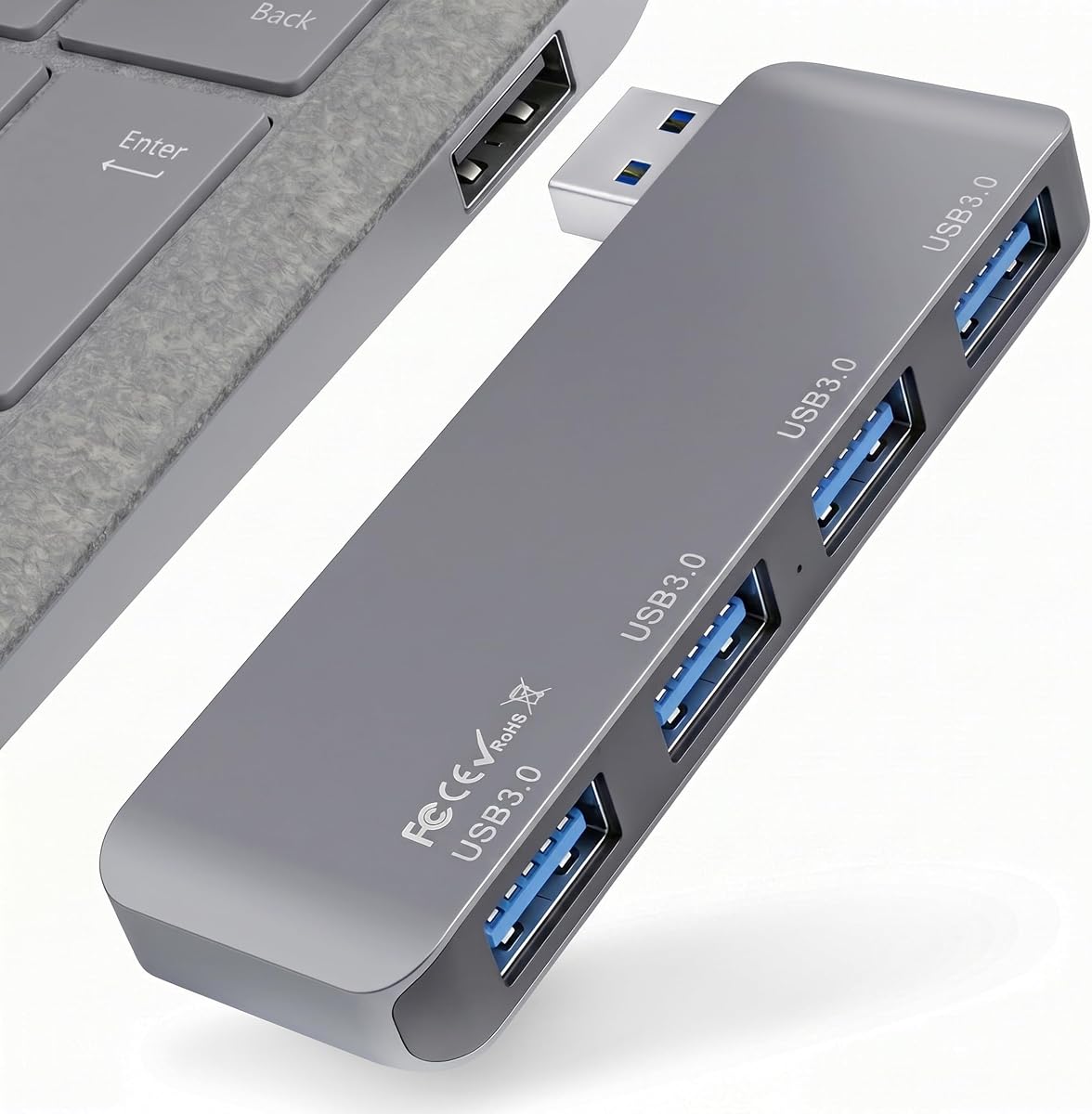
The UGREEN USB 3.0 Hub combines a 4.7 rating with a remarkably small format, making it one of the most practical picks for travel or space-conscious desks. It expands one USB-A connection into four USB-A ports and supports transfer speeds up to 5Gbps, covering the needs of flash drives, mice, keyboards, and similar USB peripherals.
We may earn a commission when you buy through this link, at no additional cost to you.
Its measured 0.4-inch thickness and 33-gram weight make it easy to keep in a pocket, laptop sleeve, or tech pouch. The short 0.5-foot cable avoids the visual clutter associated with a full-length desktop hub while still providing a little flexibility when the connection point is close to the device.
This model is deliberately focused: it has no USB-C data port, display output, or charging functionality. That limitation keeps the design simple, but buyers who need to manage a connected drive, power a device, or connect a modern Type-C peripheral should account for those needs before choosing it.
For users who only need a small, reliable way to add four traditional USB-A ports, the UGREEN is an excellent value-oriented recommendation. Its simple installation, broad operating-system support, and low profile make it particularly attractive for business trips, shared workspaces, and laptop users tired of reconnecting peripherals one at a time.
At only 0.4 inches thick and 33 grams, the hub is small enough to remain unobtrusive beside a laptop while avoiding the bulk of a conventional desktop adapter.
UGREEN emphasizes a one-to-four expansion with no additional software, making the hub suitable for office peripherals, flash drives, and systems running Windows, macOS, Linux, or ChromeOS.
We may earn a commission when you buy through this link, at no additional cost to you.
The VIENON 4-Port USB 3.0 Hub stands out through its rotatable design, which can improve connector clearance in tight spaces such as crowded desks or vehicles. It has a 4.2 rating and expands a host connection into three USB-A ports plus one USB-C data port, with all four positions able to operate at the same time.
We may earn a commission when you buy through this link, at no additional cost to you.
One USB 3.0 port supports transfer speeds up to 5Gbps, while two USB 2.0 ports operate at up to 480Mbps for peripherals such as mice, keyboards, and printers. The USB-C female port handles 5V hub power and data transfer, allowing compatible phones, mobile hard drives, and other Type-C equipment to use the data connection.
The rotating 90- and 180-degree construction is the defining advantage, particularly when a male connector would otherwise press against a desk or interfere with neighboring ports. The trade-off is the mixed-speed layout and a stated lack of audio or video transfer. It is not a display hub and is not intended for sound devices.
This is a good choice for users who value connector positioning and need both USB-A and USB-C data access. It may suit compatible vehicles and Mac systems well, but people who require four equally fast ports, charging output, or display support should examine the other options in this guide.
A 90- or 180-degree angle can make the hub easier to position when the host USB port is close to a wall, desk edge, dashboard, or neighboring equipment.
The dedicated 5Gbps USB 3.0 connection supports faster storage workflows, while the two 480Mbps USB 2.0 ports provide ample bandwidth for common keyboards, mice, and printers.
We may earn a commission when you buy through this link, at no additional cost to you.
The Anker USB C Hub is a five-function travel adapter for users who need more than basic USB expansion. It has a 4.4 rating and combines a 4K HDMI output, a 5Gbps USB-C data port, two 5Gbps USB-A data ports, and a dedicated 100W PD input, allowing a laptop to remain powered while peripherals and an external display are connected.
We may earn a commission when you buy through this link, at no additional cost to you.
Its display capability reaches up to 4K at 30Hz, which is useful for extending a workspace or presenting from a compatible USB-C computer. The data ports support transfers up to 5Gbps, giving users a practical combination of storage performance and conventional peripheral access. Anker also includes a welcome guide and an 18-month warranty.
There are important limitations. The HDMI output is limited to 4K 30Hz rather than 60Hz, and the USB-C data port does not carry video. The 100W PD input is for charging and cannot be used with headphones, speakers, or other data accessories. A charger is not included, and full iPad power may require a 45W wall charger.
This is a strong recommendation for a compatible MacBook, Windows 10 or 11 system, ChromeOS device, or other laptop supporting DisplayPort Alt Mode and Power Delivery. It is less suitable for Linux or for users who need a higher-refresh 4K display, but for compact productivity setups it combines several essential functions in one adapter.
HDMI, data, and power connections are consolidated into one hub, reducing the number of adapters required when moving between a home desk, office, hotel, or shared workspace.
Up to 85W of pass-through charging can keep a compatible laptop running while the hub handles data and display duties, although the appropriate charger must be supplied separately.
We may earn a commission when you buy through this link, at no additional cost to you.
The ANYPLUS USB 3.0 Hub is a portable four-port USB-A expander designed for a wide assortment of peripherals. Its 4.6 rating reflects a generally capable design that supports transfer rates up to 5Gbps while remaining compatible with USB 2.0 and USB 1.1 equipment.
We may earn a commission when you buy through this link, at no additional cost to you.
Its stated device support includes Windows systems, Mac OS X, Linux, ChromeOS, Xbox, PS4, flash drives, printers, mice, card readers, hard drives, cellphones with OTG, keyboards, cameras, consoles, USB fans, and USB cables. That range makes it flexible for office, entertainment, and general desktop expansion, with no driver installation required.
The important caveat is power. Maximum output current is 900mA, so the hub is not suitable for charging devices and may not support every hard drive that requires more current. Users with power-hungry storage should look for an externally powered hub, and those who expect several high-draw hard drives should not assume the bus can handle them.
This is a sensible general-purpose option when one USB-A port is simply not enough. It is particularly useful for a keyboard, mouse, printer, flash drive, and card reader combination, while the 900mA limitation makes it less appropriate as a heavy multi-drive station.
The long compatibility list makes the hub useful for mixed setups involving computers, consoles, cameras, storage media, and traditional input devices without requiring a separate adapter for each category.
Because the maximum output is 900mA, this hub is best treated as a data and peripheral connection point. High-current hard drives may need external power or a differently powered solution.
We may earn a commission when you buy through this link, at no additional cost to you.
The Portable 4-Port USB 3.0 Hub with Direct Plug-in USB Male Connector Design has the highest stated rating in this group at 4.8. Its defining benefit is simplicity: the USB-A plug connects directly to the host, eliminating the attached cable that can snag, tangle, or protrude awkwardly from a laptop.
We may earn a commission when you buy through this link, at no additional cost to you.
The hub expands one port into four USB 3.0 connections with theoretical transfer speeds up to 5Gbps. Users can connect flash drives, external hard drives, mice, keyboards, card readers, and external fans at the same time. Backward compatibility with USB 2.0 and USB 1.1 protocols broadens the range of supported peripherals.
Its dimensions of 3.35 by 1.06 by 0.4 inches make it genuinely pocketable, and the aluminum alloy shell provides a scratch-resistant surface and heat dissipation. The direct-plug approach places less strain on the host port than a thin cable, although the fixed orientation may be less adaptable in unusually tight spaces.
This is our leading choice for users who want simple, cable-free four-port expansion and frequently carry a laptop. It is well suited to shared offices, travel, school, and hot-desking. Buyers who need a rotating plug, USB-C data, display output, or power delivery should consider a different model.
The integrated male connector leaves no cable to carry, misplace, or snag, making this one of the cleanest solutions for frequently changing workspaces.
The aluminum alloy shell is designed to dissipate heat while resisting scratches, supporting stable operation when all four ports are in use.
We may earn a commission when you buy through this link, at no additional cost to you.
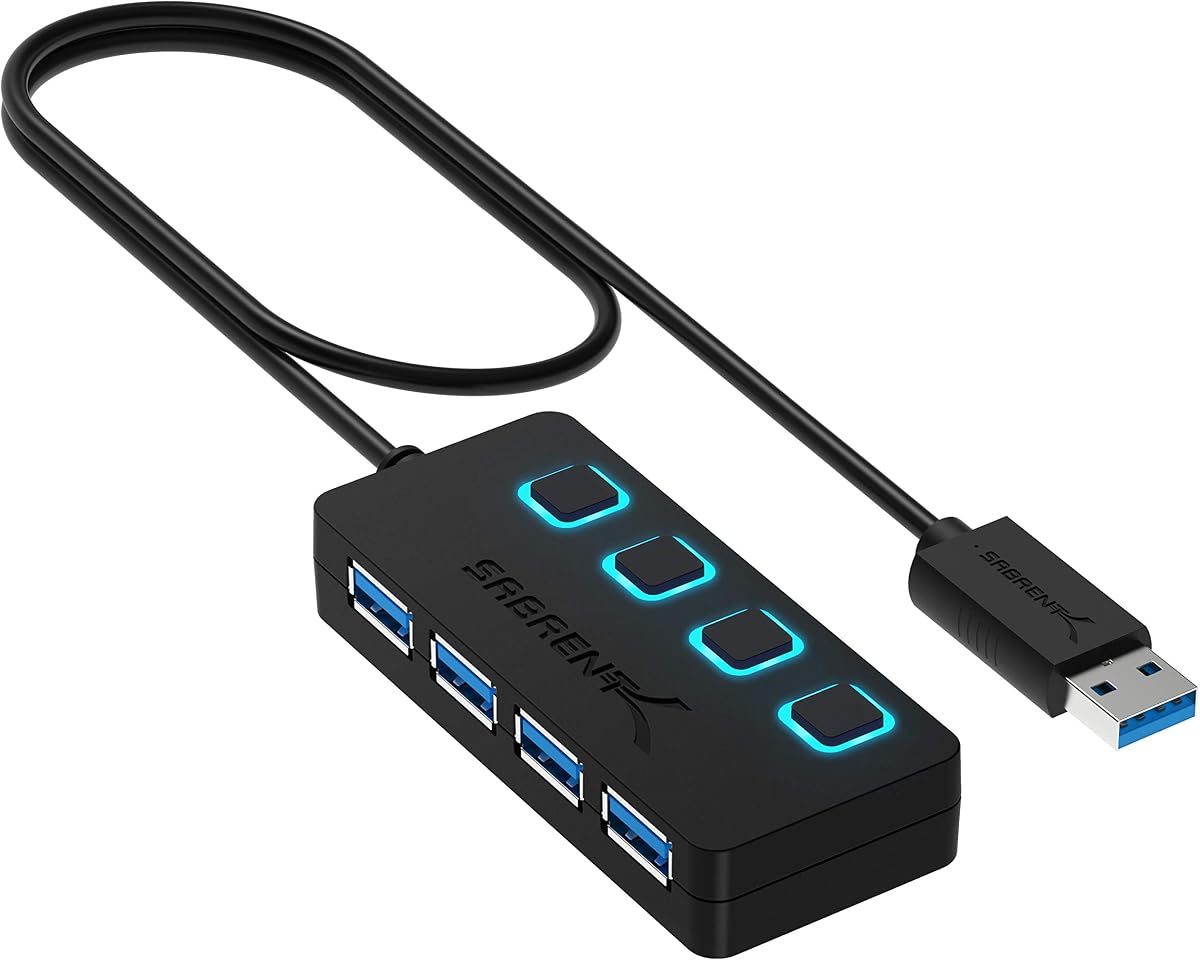
The SABRENT 4-Port USB 3.0 Hub is a practical fixed-workstation option with a 4.6 rating. Its standout feature is individual on/off control for every port, allowing a user to disconnect a device logically without removing it from the physical setup or disturbing the other connected accessories.
We may earn a commission when you buy through this link, at no additional cost to you.
Four LED indicators make the power status of each port easy to identify, which is useful when troubleshooting several peripherals. The included 2-foot cable offers flexible placement, and the hub supports transfer rates up to 5Gbps alongside backward compatibility with USB 2.0 and USB 1.1 devices.
It is not designed to charge devices, and the per-port switches and indicator lights naturally make the housing larger than a minimalist four-port adapter. The lack of a USB-C data port or display output also narrows its appeal for modern laptop ecosystems compared with travel-focused alternatives.
This hub is best for a desk where multiple USB-A accessories are permanently connected. It is especially helpful for users who want convenient control over flash drives, external drives, input devices, or other equipment. For a bag-friendly adapter without controls, the smaller UGREEN or direct-plug models may be more appropriate.
Individual switches provide a convenient way to isolate devices and manage power to each connection, which is especially helpful in a shared or frequently changing workstation.
Separate LED indicators show whether each port is powered, reducing guesswork when diagnosing a disconnected accessory or a crowded collection of cables.
We may earn a commission when you buy through this link, at no additional cost to you.
The BERLAT 7-in-1 USB C Hub maximizes physical connectivity in a compact enclosure. Its 3.9 rating is the lowest among the listed products, but the hub offers an unusually broad selection of connections: one USB 3.0 port, four USB 2.0 ports, and two USB-C 2.0 ports.
We may earn a commission when you buy through this link, at no additional cost to you.
The primary USB 3.0 port supports transfer speeds up to 5Gbps, making it the appropriate connection for flash drives, portable hard drives, and other storage that benefits from faster throughput. The USB 2.0 ports operate at 480Mbps and are better suited to keyboards, mice, printers, and similar low-bandwidth peripherals.
The host connector is USB-C, and the stated compatibility covers MacBook Pro, MacBook Retina, MacBook Air, Windows 10, macOS X, Android, ChromeOS, and updated Linux systems. The listing does not describe display output, charging passthrough, or power delivery, so buyers should treat the two USB-C ports as data connections rather than assuming they can drive a monitor or charge a laptop.
This is most suitable for users who value port quantity more than uniform speed or specialized media support. It can consolidate numerous small peripherals into one adapter, but those moving high volumes of files should use the dedicated 5Gbps port and keep slower accessories on the USB 2.0 connections.
Seven ports cover both USB-A and USB-C peripherals, reducing the need to carry multiple adapters when the device mix includes storage, input devices, and modern accessories.
Use the USB 3.0 port for fast file movement and reserve the 480Mbps ports for everyday peripherals where the lower speed is more than sufficient.
We may earn a commission when you buy through this link, at no additional cost to you.
The Lexar Go Portable Hub is a premium USB-C hub built around high-speed storage and flexible professional workflows. It carries a 4.6 rating and uses USB 3.2 Gen 2 technology for transfer speeds up to 10Gbps, twice the maximum rate listed for most of the USB 3.0 hubs in this guide.
We may earn a commission when you buy through this link, at no additional cost to you.
All four ports are USB-C, creating a consistent connection scheme for compatible smartphones, computers, portable SSDs, lighting equipment, power banks, and microphones. The hub is especially well suited to the Lexar Professional Go Portable SSD, with the included male-to-male USB-C adapter and cold-shoe adapter cable expanding the available connection options.
Its specialized design also introduces a tradeoff. A user with many USB-A peripherals may need an additional adapter because every built-in port is USB-C. The product information emphasizes shooting and portable storage scenarios rather than charging, display output, or conventional office expansion, so it is not a universal replacement for a general-purpose hub.
This is the premium choice for content creators, filmmakers, photographers, and mobile professionals who move large files between compatible USB-C storage and devices. It is also a strong fit for users who want a uniform four-port Type-C setup and value 10Gbps performance over traditional USB-A convenience.
USB 3.2 Gen 2 delivers up to 10Gbps, reducing transfer friction when copying large project files between compatible computers, phones, and portable solid-state drives.
The included male-to-male and cold-shoe adapter cables support different connection arrangements, making it easier to integrate the hub with compatible storage and production equipment.
We may earn a commission when you buy through this link, at no additional cost to you.
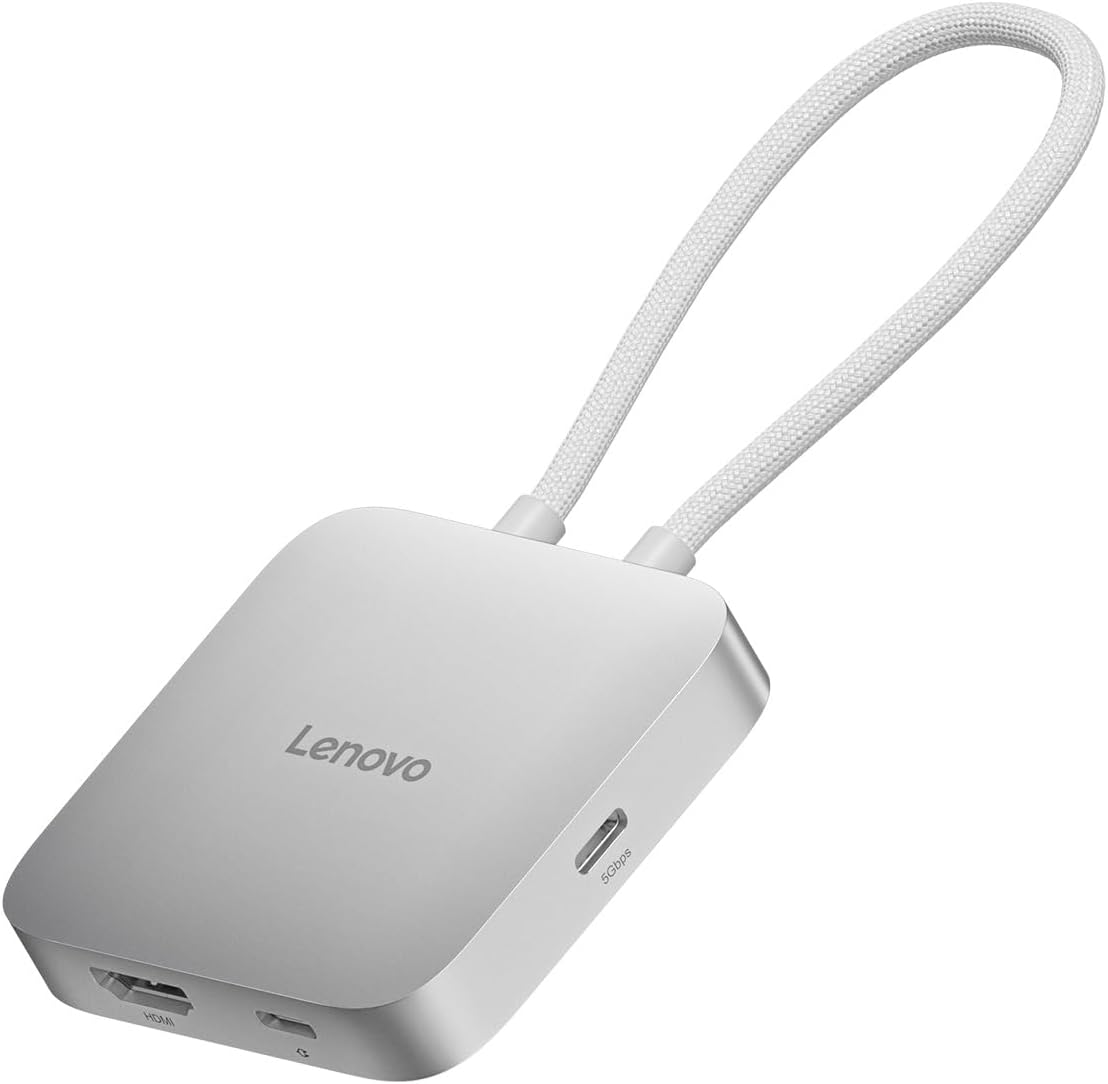
The Lenovo USB-C 5-in-1 Travel Hub is a refined productivity adapter for users who need a display, charging, and several data connections in one portable unit. Its 4.5 rating accompanies a design featuring 4K 60Hz HDMI, two USB-C ports, two USB-A ports, and up to 90W of power delivery pass-through.
We may earn a commission when you buy through this link, at no additional cost to you.
The 60Hz display specification makes it more suitable for smooth external-monitor use than the 4K 30Hz output offered by the Anker option. Simultaneous laptop charging, external-display use, and peripheral connections are the central benefit, provided the host device and charger meet the appropriate USB-C, display, and power-delivery requirements.
The product information does not specify the data-transfer rate of the individual USB ports, nor does it detail every operating-system and host-mode limitation. Users with demanding storage requirements should verify those specifications before buying. Like most travel hubs, it also assumes a compatible USB-C host rather than offering the broad legacy-device support of a USB-A expander.
This is an excellent recommendation for business travelers and hybrid workers who regularly connect a laptop to a meeting-room display or external monitor. Its understated silver-gray finish, compact profile, driver-free setup, and high-refresh 4K output prioritize a tidy, professional mobile desk.
The HDMI output supports 4K at 60Hz, providing a more fluid option for compatible laptops that regularly drive an external monitor or presentation display.
Two USB-C and two USB-A ports provide a balanced mix of modern and traditional connections, while 90W pass-through charging helps maintain a productive mobile setup.
We may earn a commission when you buy through this link, at no additional cost to you.
The best portable USB hub depends on your host connector, peripheral mix, power needs, display requirements, and tolerance for added bulk. Reviewing these factors before shopping prevents a simple port shortage from turning into an adapter that cannot handle the devices you actually use.
In short, match the hub connector to the computer before considering any other feature.
Choose enough usable ports for your typical setup, with one extra connection for occasional accessories.
Prioritize the slowest component in your chain, since a fast hub cannot make a slower drive or host transfer data faster.
Distinguish auxiliary power, pass-through charging, and downstream device charging; they are not interchangeable capabilities.
Verify the host's display capability and the hub's maximum resolution and refresh rate before buying for monitor use.
Use fast ports for storage and slower ports for ordinary peripherals to avoid unnecessary bottlenecks.
For frequent travel, prioritize a compact body and a secure connection; for a fixed desk, flexible placement and easy device control may matter more.
Confirm that both the operating system and the specific host device support the functions you intend to use.
Begin by identifying the host port and the devices you plan to connect. Connect the hub directly to the computer before attaching storage or peripherals, and use the appropriate USB-C power input when the manufacturer recommends it for hard drives or other high-current accessories. If the hub includes a display connection, attach the display and confirm that the computer recognizes the selected resolution and refresh rate before changing other settings.
Introduce peripherals gradually, especially external drives. Begin with a keyboard or mouse, add storage, and then connect any remaining devices. Avoid moving a hub while hard drives are transferring files because sudden movement can interrupt a connection. For hubs with individual power switches, use those controls to isolate a device when troubleshooting, and do not treat a hub that lacks charging support as a general-purpose charger.
To keep the adapter in good condition, handle the connector rather than pulling on the attached cable, and keep the housing away from moisture, excessive heat, and impact. Store cable-based models with the cable loosely coiled. Direct-plug hubs should be removed carefully rather than pried sideways against the host port, while aluminum models can be wiped with a soft dry cloth. Periodic inspection of connectors and exposed contacts helps identify wear before it causes intermittent operation.
It depends on the specific hub. Some USB-C models support pass-through laptop charging, some provide auxiliary power to stabilize connected devices, and others do not support charging at all. A power-input port may also be limited to powering the hub rather than charging a phone. Always check the product specifications and supported power-delivery behavior before assuming charging is available.
A 5Gbps hub is generally adequate for standard flash drives, keyboards, mice, and moderate file transfers. A 10Gbps hub is better suited to fast portable SSDs, larger media files, and demanding storage workflows. Actual performance also depends on the connected drive, host controller, cable, file system, and whether several devices are active simultaneously.
No. The laptop's USB-C port must support the required display mode, commonly DisplayPort Alt Mode, and the hub must also provide compatible video output. Some hubs include a USB-C data port that cannot carry video even when their HDMI port can. Check both the computer and hub specifications before planning a monitor setup.
Some hubs support several storage devices, but total power and bandwidth requirements matter. A bus-powered hub that provides only 900mA may not support every hard drive, especially when multiple drives operate together. Use the auxiliary power input when recommended, distribute storage across separate controllers when possible, and avoid moving the setup during active transfers.
A direct-plug hub is more compact and avoids a loose cable, making it convenient for travel and frequently changing workspaces. A cabled hub can be easier to position in crowded areas and may provide more comfortable clearance. Direct-plug models can also place more leverage on the host port, so they should be removed carefully rather than pulled sideways.
Many of the listed models explicitly support Linux and ChromeOS, and most basic expansion hubs require no additional driver. Specialized display hubs may have narrower compatibility; for example, the Anker option is not listed as Linux compatible. Operating-system support also does not guarantee every display, charging, or data feature will work, so verify the particular functions you need.
The hub's listed port count determines how many physical peripherals can be connected simultaneously, although some models reserve one USB-C connection for power or the host. Shared bandwidth and total power can reduce practical performance when several devices are active. For most office setups, a mouse, keyboard, and one storage device will present fewer demands than multiple external drives or high-resolution displays.
Size, weight, connector durability, and host compatibility are the main priorities for travel. A direct-plug or ultra-slim model minimizes cable clutter, while a rotating connector can help in tight locations. If you need a monitor and charging, select a hub with explicit HDMI and power-delivery support; otherwise, a simple four-port adapter is usually easier to carry and more broadly useful.
The Direct Plug-in 4-Port USB 3.0 Hub offers the strongest combination of compact construction, four high-speed ports, and cable-free convenience. The UGREEN 4-Port USB 3.0 Hub is an excellent budget-oriented choice for users who value a tiny footprint, while the Lexar Go Portable Hub leads the premium group with four USB-C ports and 10Gbps performance for compatible storage workflows.
For productivity setups that need more than simple expansion, the Anker 5-in-1 and Lenovo travel hubs add display output and charging passthrough. The Acer and SABRENT models suit users focused on four USB-A ports, with the Acer offering auxiliary power and the SABRENT providing per-port switches. Prioritize the connector, port speeds, power behavior, and operating-system support that match your actual devices.
Product listings, ratings, specifications, availability, and prices can change over time. Review the current Amazon listing before purchasing, particularly if a compatible charger, display adapter, storage drive, or host device is required. With those details confirmed, the right portable USB hub can turn a crowded single-port setup into a more capable and organized workspace.